Brewing it again
12.0Look back first: brew history
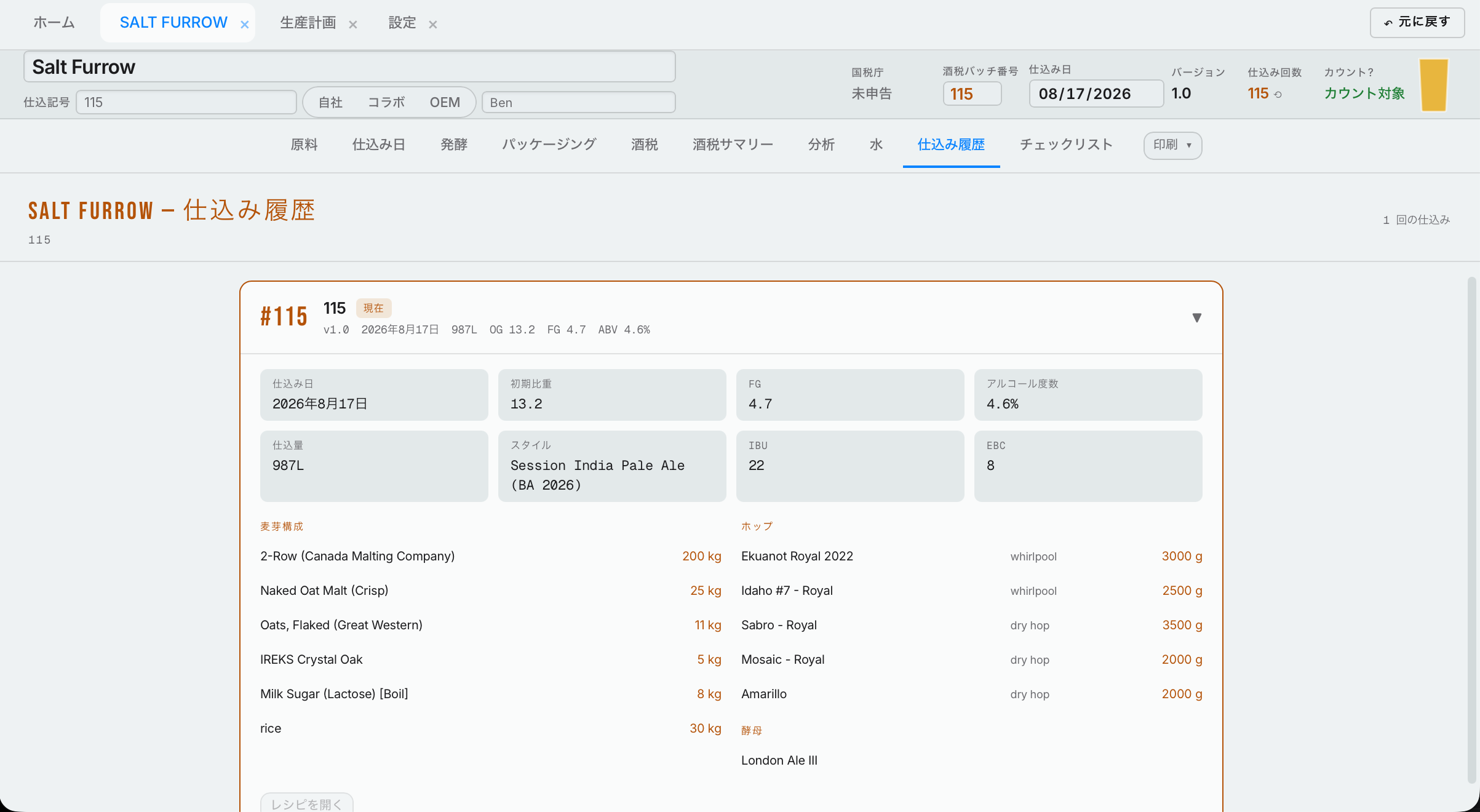
Before you brew a beer again, open the recipe's Brew History tab. It lists every time the beer has been brewed. Each one shows the version note, what changed in that version, right on the list.
- Press the arrow on a brew to open it. It shows that brew's ingredients (malts, hops, yeast) and its numbers (original gravity, final gravity and the rest).
- Press Open recipe to open that version and see everything.
On the Ingredients tab, Previous notes shows the notes you made on the other versions.
12.1New batch: the same beer again
You've finished a beer and recorded everything. Two months later you want to brew it again.
- Find the recipe and open it.
- Press New batch. The Start new brew window shows the brew you're repeating (the source brew) and the brew number this one will be.
- Press Archive & Start New Brew. The last brew is closed out and the new one starts. Pressing Archive & Start New Brew closes out the last brew, so it is locked and can't be changed by accident. An administrator can unlock it.
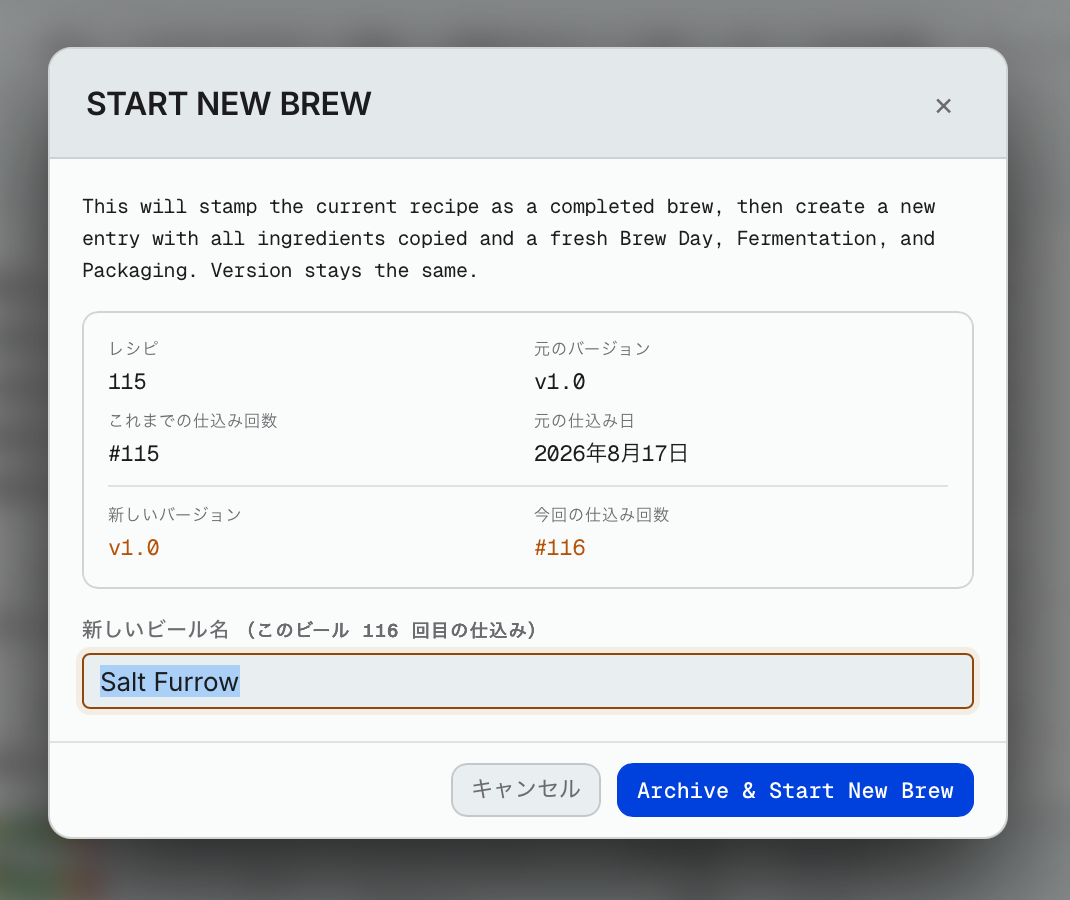
The version stays the same (for example 1.0), and Times Brewed goes up by one: this is brew 2 of this beer. You can change the name if you want; it stays connected to the same beer.
12.2New version: you changed the recipe
Press New version and choose what changed:
- Amounts changed: the same ingredients in different amounts, for example doubling the dry hop. The version goes up a small step: 1.1 → 1.2.
- Ingredients changed: you swapped or added an ingredient. It becomes a new full version: 1.7 → 2.0.
The same window opens as for a new batch. You can change the name. In Version note, put a quick note about what changed. Example: "Took out Mosaic, put in Galaxy." Later, in the brew history, you can see why each version was different without opening each recipe.
12.3Play
Use Play when you want to try changes but aren't sure you'll keep them.
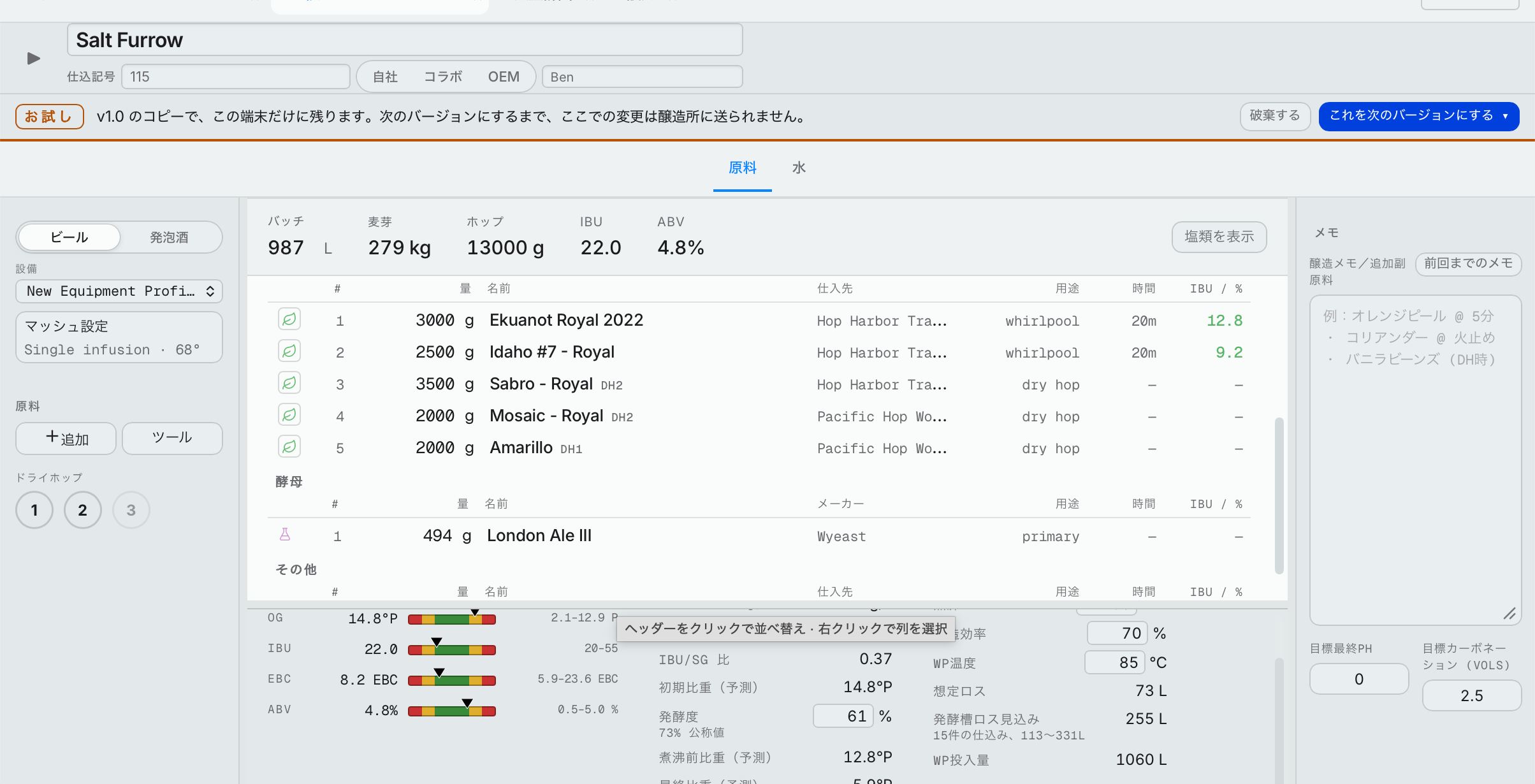
Press Play and you get a play copy of the recipe. Change anything: ingredients, amounts, mash, anything. The real recipe doesn't change, and the play copy stays connected to this beer and its versions. A Play tab stays at the top so you always know you're in the copy.
When you're done:
- Didn't like it? Press Throw away. The real recipe is exactly as it was.
- Want to brew it this way? Press Make this the next version. Your play copy becomes the beer's next version, and from then on that's the recipe.
You can have more than one play copy going. Close the beer and come back later: under Play on the left it tells you how many play copies are open on this device, and you can open one and carry on.
A play copy stays on the device you made it on. It isn't shared until you make it the next version. Example: you play with a recipe on your phone. Your computer won't see those changes until you press Make this the next version.
Once you make it the next version, that's the recipe from then on. To go back to how it was, open the old version from the brew history and save it as a new version.
This can sound complicated, but it's there to keep your real recipes safe. To practice, make a pretend recipe and play with that. If you want more room to try things, ask us for a demo sign-in: the demo version of Hakkotome lets you change anything you like with no effect on your brewery.