Getting started
1.1Connect this device
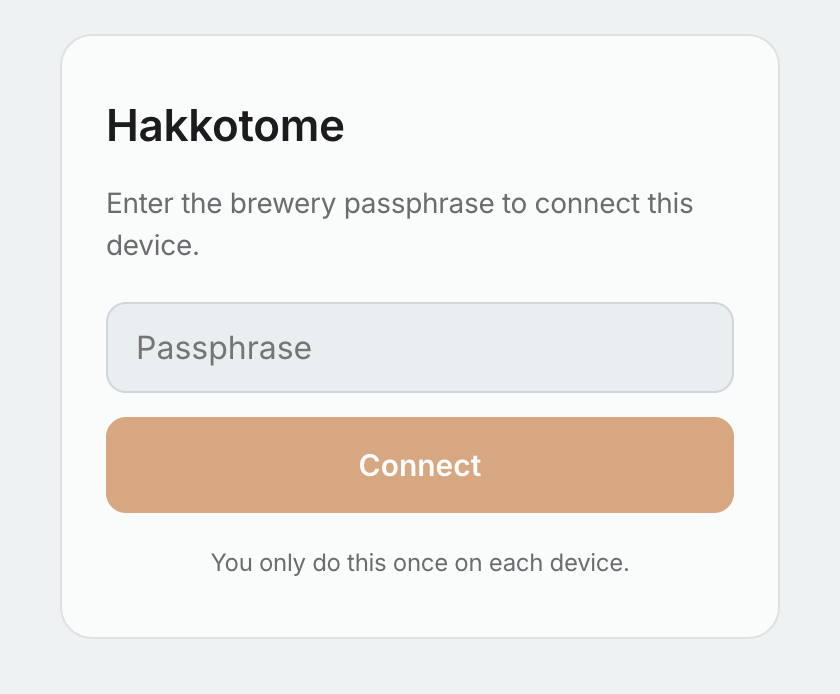
You only do this once on each device.
- Open your brewery's address.
- Type the brewery passphrase.
- Press Connect.
1.2Sign in
- On Who's using this?, tap your name. (Or press Sign in with a password at the bottom.)
- Your username is already filled in. Type your password.
- Press Sign in.
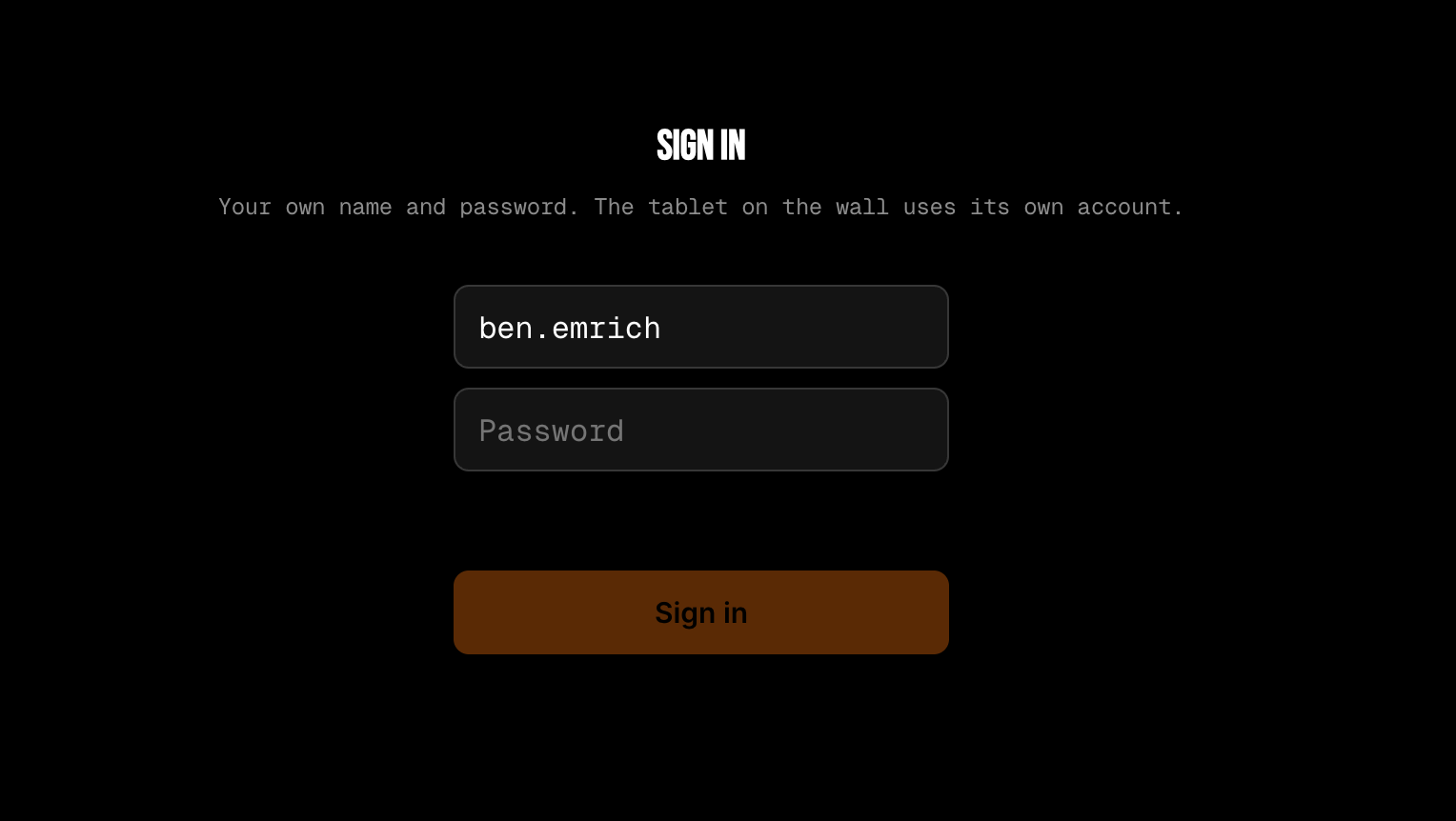
One sign-in for the three apps. When you sign in here with your own username and password, the Team Hub and the Sales Hub also open without asking for your password again. A sign-in on the shared tablet with a PIN (10 min, 1 hour, All day) is not carried over, so the other two apps still ask. If one of them still asks, type your password there once. It works the other way round too: if you are already signed in to the Team Hub with Today or This is my device, BrewLab opens without a password and says once, "You are signed in from Hakkotome." Sign out here also signs you out of the Team Hub and the Sales Hub, and signing out there signs you out here. With no signal BrewLab keeps working: it signs you out only when the Team Hub itself says you are signed out. A sign-in you made here with your password is never ended by the other apps.
A shared device has its own account. A tablet on the wall, or any device several people use, does not sign in as a person. It signs in with the brewery's shared account.
1.3Make your own password
The first time you sign in, it asks you to make a new password.
- Type your new password.
- Type it again.
- Press Save and continue.
You're signed in.
1.4Choose how it looks
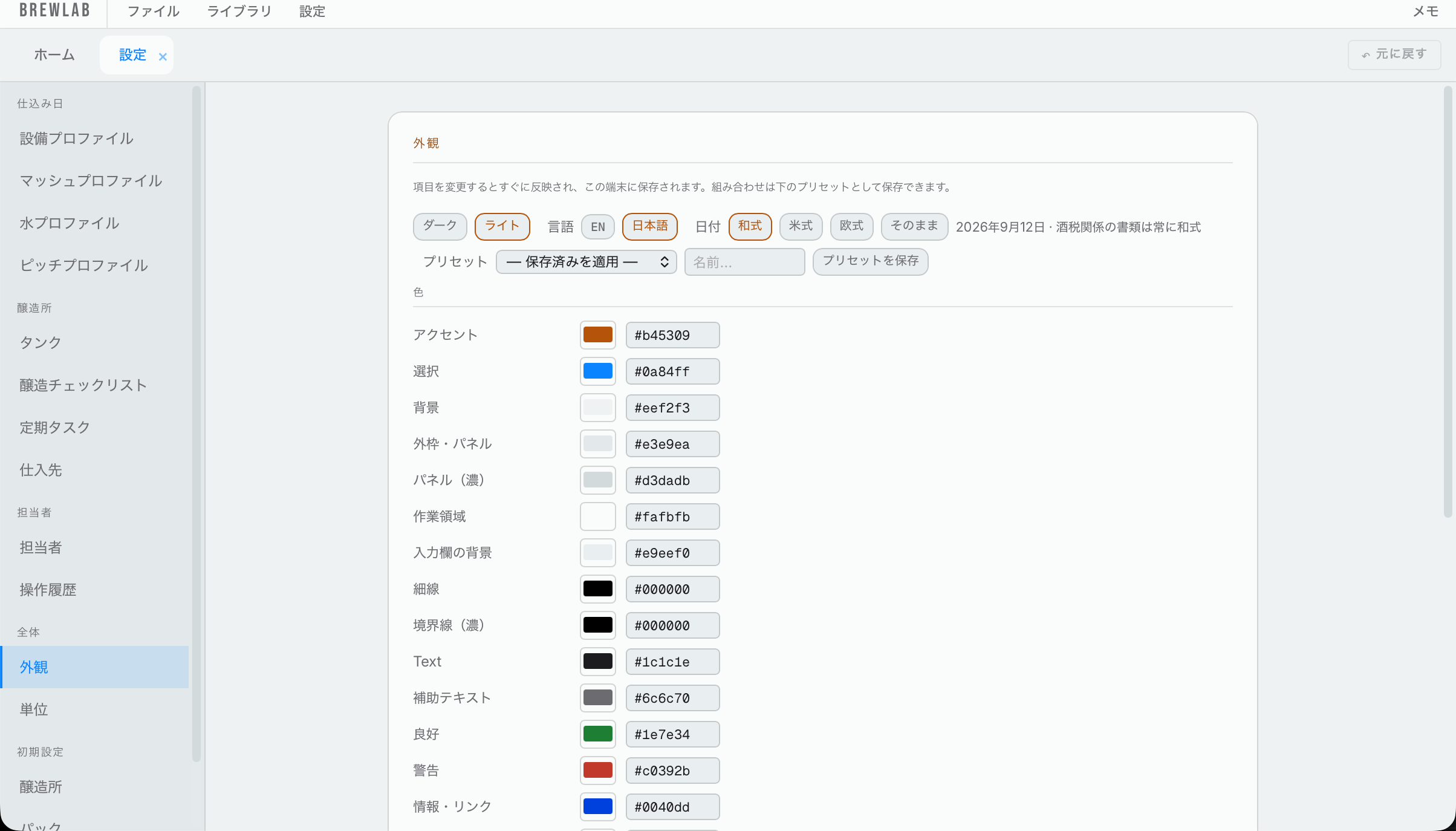
- On Home, press Settings in the top menu.
- Under Everywhere, press Appearance.
- Choose Dark or Light.
- Choose the language: EN or 日本語 (Japanese).
- Choose the date style. We recommend Japanese. Tax paperwork always uses Japanese dates, whatever you pick here.
The rest of this page changes the colors, fonts and sizes. Most breweries never need to touch it.
1.5Choose your units
Under Everywhere, press Units. Set up what you like:
- Color: EBC or SRM.
- Gravity: °P (Plato) or SG (like 1.050).
- Carbonation: vols (volumes of CO₂) or g/L. 1 vol is 1.96 g/L.
- Display precision: how many decimal places amounts show.
Gravity and carbonation change on every screen, every phone and tablet, and the brewery's own print-outs. You type in the unit you picked and read in it too. Example: with SG picked, you type 1.048 for the OG, where you used to type 12.
Switching doesn't change anything you've saved, so you can switch back whenever you like. Two things always stay in °P:
- The tax pages, because the forms ask for °P.
- Rules that count a difference in gravity, like "dry hop 2 °P before final gravity" and the pitch rate (million cells per mL per °P).
1.6Set up your brewery
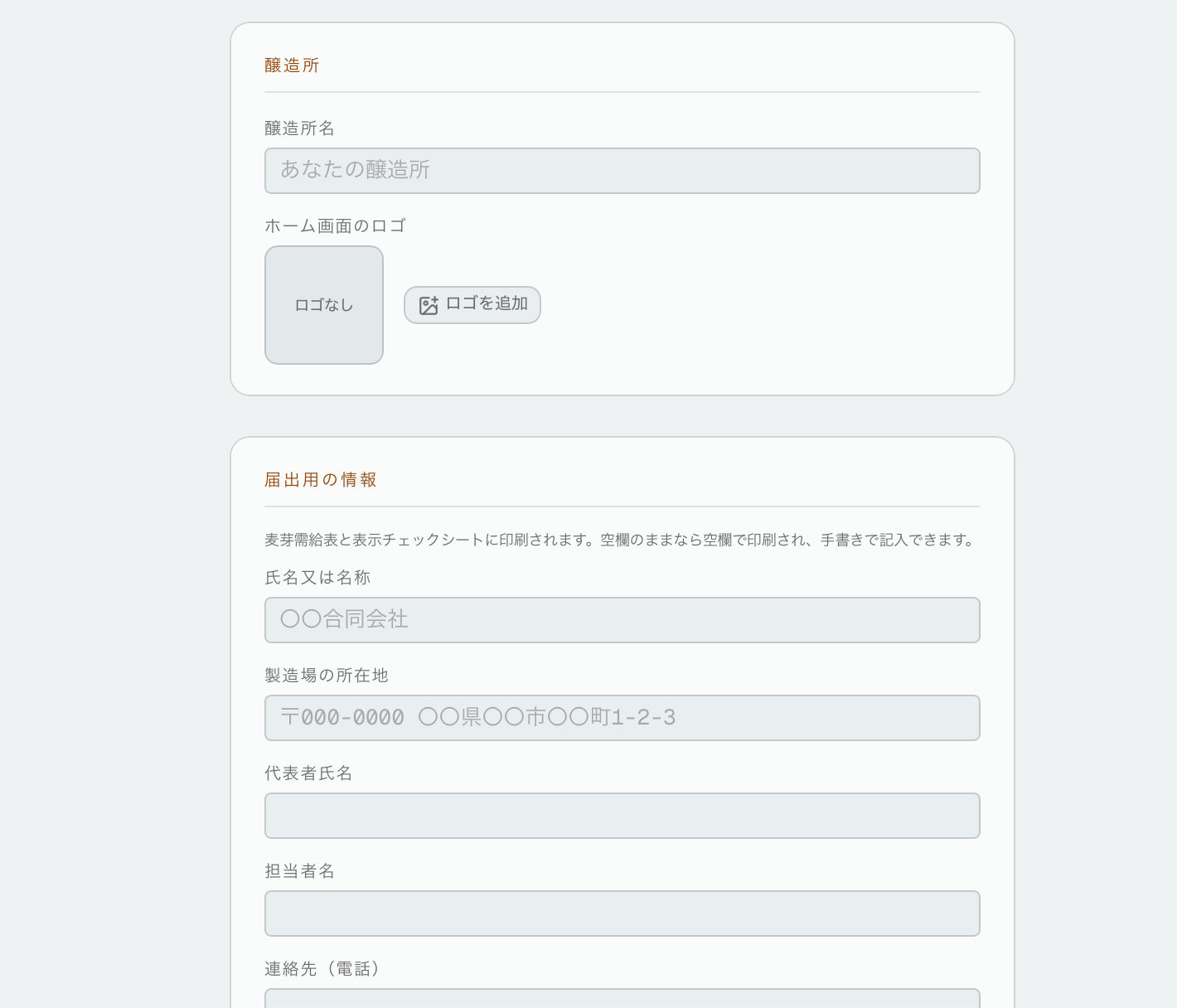
- In Settings, under Set up once, press Brewery.
- Type your Brewery Name.
- To add a logo, press Add logo. Choose where it goes: the upper left or the center. A faded copy of your logo shows behind the Home page. You don't have to add one.
- Under Official details, fill in your details: company name (氏名又は名称), brewery address as licensed (製造場の所在地), representative (代表者氏名), contact person (担当者名), phone and email, your liquor manufacturing license number (酒類製造免許番号), your tax office (所轄税務署) and your corporate number (法人番号).
- Under Liquor sales manager (酒類販売管理者), type the sales manager's name, home address, date of birth and the date of their last training (研修受講日). The training has to be taken again every 3 years.
These official details are printed on the malt quota form (需給表), the label check sheet and the loss notice, and the Tax Hub uses them on its forms. A box you leave blank prints blank, to fill in by hand. Everything here is shared, so the tablet and the phone see what you type on the computer.
1.7Advanced settings
In Settings, press Advanced. These are the numbers Hakkotome's calculations are built on. Most breweries leave them as they are.
- Grain Absorption (L/kg): how many liters of water each kilogram of grain soaks up. Set at 1.05.
- Default Grain Temp (°C): the temperature of your grain before mashing. Set at 20.
- Test Sample Volume (mL): how much beer you take for each gravity reading. Set at 20. Every time you take a reading, this much is counted as waste, and that waste is reported to the tax office.
- Cooling Shrinkage (%): how much the wort shrinks as it cools from hot to cold. Set at 4.
- Beer Buffer Capacity: used only to work out your mash pH. Set at 0.3.
- IBU Method: how bitterness is calculated. Choose Tinseth, Rager or Daniels.
- Mash Hop Bitterness: how much bitterness a hop in the mash gives, compared with the same hop boiled for 60 minutes. Set at 30%.
- Leaf / Whole Hop Adjustment: how much less bitterness whole hops give than pellets. Usually −10% to −15%.
- 1 kg hops → __ kg slurry: how many kilograms of wet slurry one kilogram of dry hops turns into once it has absorbed wort or beer. Used to convert what you weigh out of the whirlpool back to a hop-equivalent weight for Recycled hops. Set at 15.
- Alpha Acid Retention (%): how much of the original alpha acid is still active after one use, for Recycled hops. Set at 77 (Oregon State: spent dry hops retained 77% of alpha acids).
- Oil Retention (%): how much of the original hop oil is still active after one use, for Recycled hops. Set at 51 (Oregon State: spent dry hops retained 51% of total oil — a separate figure from Alpha Acid Retention, not the same number).
1.8Database connection
At the bottom of the Advanced page, under Database Connection:
- Press Test Connection.
- Make sure it says Connected on the right.
Sending changes shows any change you made that hasn't reached the server yet. Normally it says "Nothing waiting — every change has reached the server." If something is waiting (say you were offline), press Send now. If the server refused a change, or another device changed the same thing first, it's listed here so you can make the change again or discard it.
1.9Suppliers
In Settings, press Suppliers. Add the companies you buy from: who you get your hops, grains, yeast and the rest from. These are used on the orders page to keep your ordering organized.
Under Default Shipping Costs, put what shipping costs you: per kilogram of malt, per kilogram of hops, and per packet of dry or liquid yeast. These go into the cost of each beer on the Analysis tab and its printed sheet: malt and hops for every kilogram the recipe uses, yeast for every pack (dry) or pitch (liquid). Harvested yeast pays no shipping. Example: malt shipping ¥10/kg and a 200 kg grain bill adds ¥2,000 to the beer's cost.
1.10Recurring orders
Also in Settings, under Recurring Orders, set up anything you order on a regular schedule. Press New Recurring Order and pick the ingredient, supplier, amount and how often. These show up on the orders page.
1.11Equipment profiles
In Settings, press Equipment Profiles, then New Profile. Put in your brewhouse: kettle volume, mash tun volume, your default brewhouse efficiency, boil time, boil-off rate, trub loss and batch size. When you make a recipe, you pick a profile and these numbers fill in for you.
1.12Mash profiles
In Settings, press Mash Profiles, then New Profile. Make one for each way you mash.
- Name it at the top.
- Fill in the Water Ratio (liters per kilogram of grain), Mash In Temp and Mash Out Temp.
- Add your steps with Add Step. Add as many as you want, each with its temperature and time, and notes if you like.
Cereal mash: tick Cereal mash and a calculator comes up. Fill in the water per kilogram, the rest temperature, how long it rests and how long it boils.
Decoction: the first step is always your mash in. After that, add a step, choose Decoction, and put the temperature you want the mash to reach. When you brew, Hakkotome tells you how much of the mash to scoop out (in liters and as a percent), boil and put back to hit that temperature. It also tells you to pull a little more than that and add it back in stages. Add as many decoction steps as you want.
1.13Water profiles
In Settings, press Water Profiles, then New Profile. Enter what's in your water. This is your source water: what comes out of your tap. It's used when you set up the water in a recipe (water).
1.14Pitch profiles
In Settings, press Pitch / O₂ Profiles, then New Profile. A pitch profile holds how much yeast to pitch (the pitch rate, in million cells per mL per °P) and your O₂ target (ppm). Example: Ale – standard 0.75 and 8–10 ppm; Lager 1.5.
Make one for each way you pitch. For example: Hazy – under pitch, Hazy – regular pitch, Lager – over pitch. You pick one on each yeast in a recipe (see add the ingredients); the cell sums use its rate and Brew Day shows its O₂ target.
1.15Tanks
In Settings, under Brewery, press Tanks.
- Name each tank exactly what you told the tax office. The name goes on your tax records.
- Choose Unitank or Conical.
- Choose how the volume is worked out. For Cone calculation, fill in: - Cone Height (mm): how tall the cone is. Hakkotome adds it to your dipstick reading on the tax record, since the dipstick measures from the top of the cone. - Cone Volume (L): how many liters the cone holds - L per mm above: how many liters each millimeter holds above the cone - Maximum (L): the most the tank holds. Use exactly what you told the tax office. Hakkotome warns you in red if a volume for that tank goes over it (on Brew Day and Packaging), but still saves what you typed. Example: your FV3 is filed at 1,100 L and brew day works out 1,130 L from the dipstick: a red line says it's over.
Use the figures you filed with the tax office, so what you enter never differs from what you told them the tank holds.
When you measure, measure only from the top of the cone up. Hakkotome adds the cone for you.
Example: your cone is 30 cm (300 mm) tall and holds 100 liters, and above it each millimeter is 1 liter. On brew day you measure 20 mm. The tax sheet shows 320 mm and 120 liters (100 L in the cone + 20 mm × 1 L).
Filed chart: instead of the cone calculation, you can use the chart you gave the tax office.
- Choose Filed chart and press Set up chart….
- Type in the chart from your filing: millimeters first, then liters, one row per line. A space between them is enough (tabs, commas and pasting from a spreadsheet work too).
- On the right you'll see the chart as Hakkotome read it: millimeters on the left, liters on the right. Check it against your filing.
If you measure a height that isn't on the chart, Hakkotome works it out from the two rows either side of it.
Allow readings past the ends of the chart is up to you. We recommend leaving it off, so every figure comes from the chart you filed.
Bright tanks
Set up bright tanks the same way: name each one what you told the tax office, and choose the cone calculation or the filed chart.
Keg sizes
At the bottom, add the keg sizes you use. This matters for tax: the sizes you fill go into your tax register.
1.16Brew checklist
In Settings, press Brew Checklist. This is the list of stages every beer goes through, in order, from brewing to packaged and ready to sell. Each beer gets its own ticks on the checklist. Make sure everything is ticked before you close out a beer.
You can add your own stages, rename them, move them up or down, or remove them. Restore defaults puts the original eight back.
1.17Recurring tasks
In Settings, press Recurring Tasks. Add anything that has to happen on a schedule: once a week, once a month, every few months or once a year. For example, taking inventory once a month. For a once-a-year task, pick the month too. When a task is due, it shows in the Recurring box on the Whiteboard. A manager assigns it to someone, and it shows in that person's My tasks. When it's ticked done, the person is cleared, so next time you choose again.
1.18People
In Settings, press People. This is everyone on your team.
- At the top are the PINs. A PIN is how someone signs in on a shared device, like the tablet on the wall.
- At the bottom are the accounts. Only an administrator can change someone's role or reset their password.
You're the administrator from the start. Whoever the brewery was signed up with is its first administrator. Tick Admin on anyone else you want to be one too (they need an account first). An administrator can also reset anyone's PIN.
1.19User history
In Settings, press User History. Only an administrator can see it.
Everyone who uses Hakkotome is signed in, either with their own account on their phone or computer, or with their PIN on a shared device. So every time someone records that they did something, Hakkotome records who it was. If something is missing, look here to see who said they did it.
Filter by person, by what was done, or by dates, or see everything that was entered.