Brew day
Before brew day, make sure you've printed the sheets and the recipe has the right brew date and tax batch number. On the day, open the recipe's Brew Day tab and fill it in as you go.
At the very top of the tab is a Calculations button. It opens every brew-day calculator — liquor back, short on gravity, mash off temperature, the hydrometer correction and the rest — with this beer's numbers already filled in. See Calculations. It's in the same place on the phone.
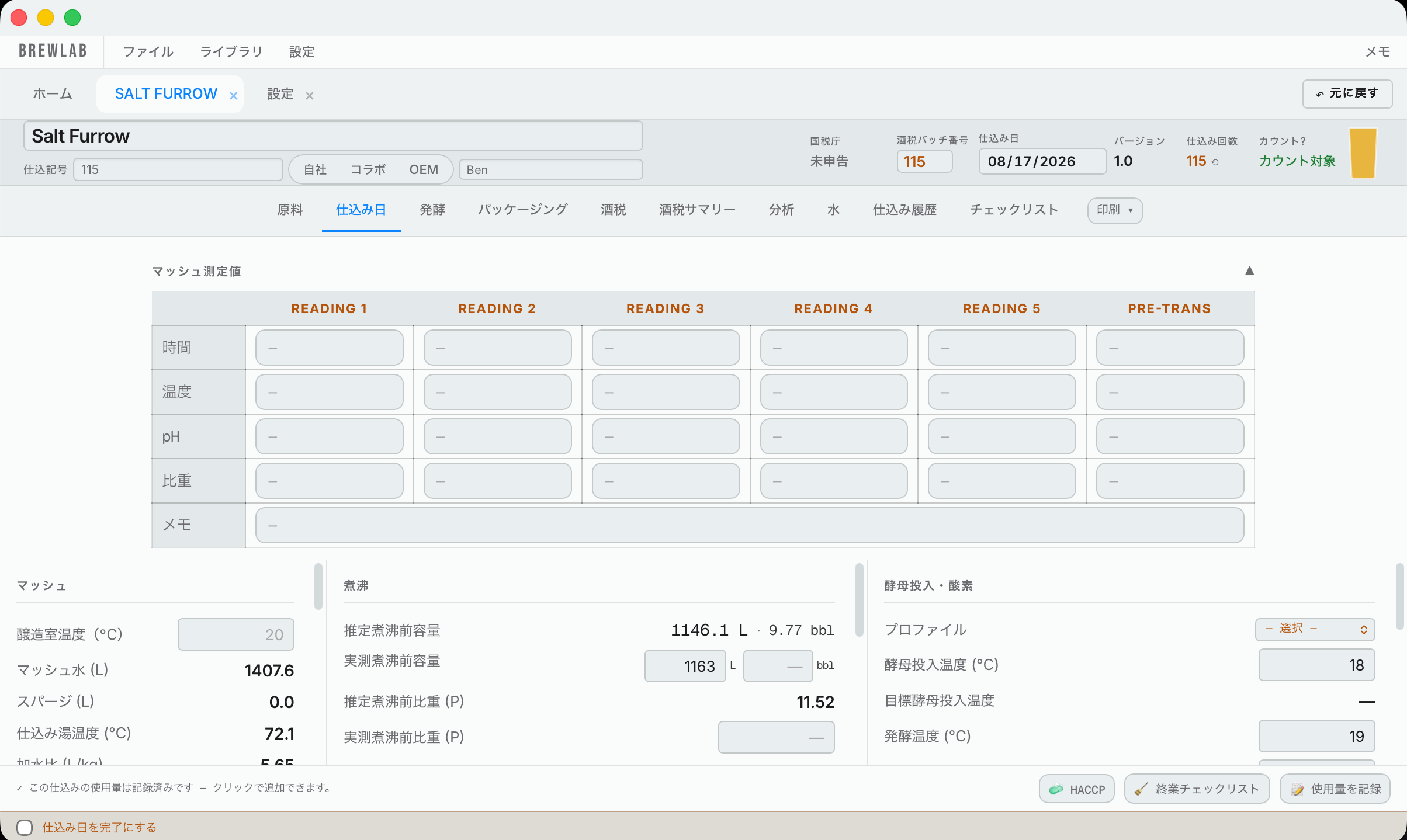
6.1Mash
- Mash readings: for each reading, the time you took it, the temperature, pH and gravity, plus any notes. Press the triangle to fold this section away when you're done.
- Brewhouse temperature: usually doesn't matter much, but on a cold day (for example 0–10°C outside) the brewhouse is colder, which cools your mash and changes the strike water temperature.
- It shows how much mash water and sparge water you need and your mash steps. Fill in what you actually did.
6.2Boil
In the middle, fill in the boil. It shows the estimated amounts next to what you measure. Type a measured volume, before or after the boil, in liters or in barrels (bbl), and it fills in the other.
Estimated trub loss is what Hakkotome expects you to lose in the kettle: the trub loss in your equipment profile, plus what the kettle hops soak up. It counts 1 L per kg of pellet hops in the boil (3 L per kg for whole hops) and 6 L per kg of whirlpool hops. Dry hops don't count here; they're in the fermenter.
It also shows your efficiencies.
Liquor back: if your gravity came out higher than the target and you need to add water, press Calculations at the top of the tab and open Liquor back. The target gravity and the wort volume are already filled in; put in the gravity you measured and it tells you how much water to add.
6.3Pitch and oxygen
On the right is Pitch & Oxygen.
It shows the pitch profile you chose for the yeast on the Recipe tab, and its oxygen target. You can't change it here; change it on the yeast.
- O₂ LPM and O₂ Time (min): the oxygen flow you ran and for how long. Example: 2 L per minute for 10 minutes. This is your record of what you did.
Pitch & Oxygen also shows the targets you set on the yeast: target pitch temperature, fermentation temperature and target pitch pH. Fermentation temperature can't be changed here. Under each target, type what the pitch temperature and pH really were.
Measure your oxygen every brew. When you oxygenate, write down the liters per minute, how long you ran it, and the oxygen you measured afterward. Once 5 brews have the flow, the time, the volume in the fermenter and the measured oxygen, Hakkotome tells you under O₂ Time how long to run to hit your target at the flow you typed, and it gets better with every brew you record. Example: "Run about 9–11 min to reach the target (from 6 brews)." Before that it says how many brews it has so far.
It also shows the gravity rise to expect from the dry hops, as a guide; more on that in fermentation.
6.4Into the fermenter
Put in the dipstick reading in the fermenter, in millimeters. Hakkotome works out the liters from your tanks setup.
No declaration covers this beer. At the top of Brew Day, an amber notice appears when the production method of this recipe has not been declared to the tax office (see Recipe Submitter). It says one of two things: nothing in the register matches this recipe within 10%, or the matching declaration is written down but not sent yet. A declaration whose production you have ended does not count. The notice goes away once a sent declaration covers the beer. It only warns; you can still save and brew.
6.5Finish brew day
At the bottom of Brew Day:
- Linked brew: the brew on the production schedule this recipe is linked to. It's there in case the name changed, for example on a new version.
- HACCP: press it to sign off brew day on your HACCP records. It records the name of whoever is signed in.
- Closing checklist: the end-of-brew-day cleaning list, to make sure everything got done. You change the list on the HACCP page.
- Record usage: takes the ingredients you used out of your inventory. For each ingredient you pick what you used from a list, for example Citra → Kataoka → lot …382. Nothing to type: the list is grouped by supplier, each lot shows the end of its number, its crop year and how much is left (…382 · 2025 · 5 kg left), and empty lots sit at the bottom. Check the bag and pick the one that matches. A new batch of a beer you've brewed before starts with nothing recorded: only what was recorded for this brew shows as Logged.
6.6Recording usage
Press Record usage and the Record ingredient usage window opens.
- Malts: some may have a few choices, because your library is in categories. It shows what you have on hand; choose the one you used.
-
Hops: the same (see lot numbers).
-
Harvested yeast: if you picked a jar in the yeast window (see 4.8), the yeast line says which jar it comes out of and how much is in it today, for example From jar J1 (15.0 L in it today) — empty the jar. It's ticked: the jar is emptied and whatever you didn't pitch is thrown away (it says how much, and it goes in your tax records as a correction). Untick it and the rest stays in the jar.
Example: J1 holds 15 L and you pitch 12 L. Ticked, the other 3 L is discarded and J1 is free for the next harvest. Unticked, 3 L stays in J1.
Water salts and acids aren't listed: they aren't stock. Everything else is, including finings, nutrients and enzymes (they're stock, even though they don't go on the tax pages). The Type in Libraries → Misc decides.
Not enough in stock? Example: you used 75 kg but stock says 50 kg. It tells you that you can't record it and that action is required.
- Record anyway is there for emergencies only. It puts negative numbers in your tax records. Don't use it.
- Instead: press Go back and adjust, press Adjust beside the ingredient, type how much you really have and press Update. That adds a Brew day correction line to your tax records on the brew date (for example +25 kg). Then record the usage.
That's it: your stock and your tax records are updated for you. No Excel files, nothing to write down.
6.7Mark brew day complete
Once the closing checklist is done and everything is recorded, tick Mark Brew Day complete. This ticks brew day on the beer's checklist (the stages you set in Settings → Brew Checklist).