Opening, closing and HACCP records
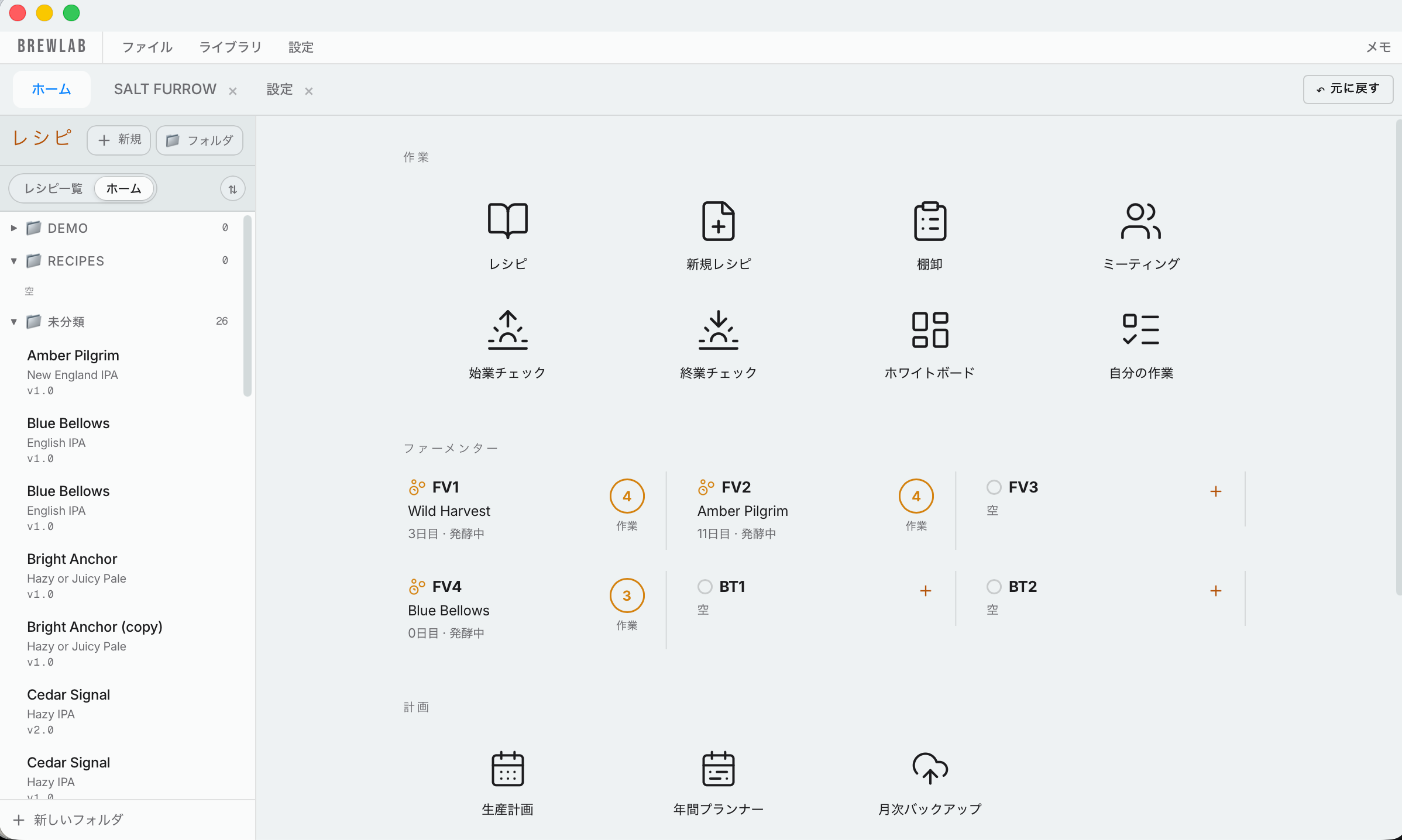
Home has buttons for Recipes, New recipe, Take inventory, Meetings, Opening, Closing, Calculations and My tasks. This part covers Opening and Closing. Both open the HACCP page.
3.1The opening list
The things someone checks every day when the brewery opens: for example, empty the drying rack, clean the yeast buckets, and make sure all staff are healthy. These are part of your HACCP records.
To change the list, an administrator presses Edit list. Add, remove or reorder anything you want.
The end-of-brew-day cleaning list shows only on the closing list, not the opening list.
3.2The closing list
The same for closing: the closing list for every day, and the end of brew day cleaning list, which the brewer does on a brew day. (The cleaning list is ticked on the recipe's brew day tab.)
3.3Weekly check-off
At the bottom is the weekly check-off. HACCP needs someone else to check every week that all of this was done.
If the weekly check-off isn't done, the Whiteboard's Other box says "Weekly HACCP check not signed off" until a manager signs the week off here.
3.3b When a check fails
A check marked as failed shows on the HACCP page in a red box, Failed checks — corrective action needed. Press it and fill in what you did about it: the form shows what your own HACCP plan says to do, and you write what you actually did. Keep the record 2 years.
If the same check is marked Pass afterwards (you fixed it and checked again), the failure leaves the red box. It is not deleted: the Fail and the Pass both stay in the Records table and on the printout. A Fail that was pressed by mistake is best taken back with Un-tick.
What happened to the beer is only about the beer the failure could have touched. Pick one:
- No product affected: the failure didn't touch any beer.
- Held — not released: the beer is kept back until you're sure it's fine.
- Reworked / re-treated: you fixed the beer and it went on.
- Released after checking: you checked the beer, it was fine, and it went on as normal.
- Dumped: the beer was poured away.
The Dump button on a beer's Packaging tab (see loss notice) uses the same record without this question, because a dump already answers it.
Once filed, a record can't be edited or deleted. Got it wrong? File another one.
3.4Records
If anyone asks for your HACCP records, open Records and pick the month. It shows everything checked off on the opening and closing lists, all the other HACCP checks, each bacteria test (the day it was sent and the day its result came back) and each ATP swab reading. Press Print to print them. Everyone can see Records; nobody can change them here.
Show picks the equipment: every fermenter, every bright tank, the brewhouse, the canning machine and the brewery. To see one beer's records, type its name in the box beside it instead. Example: type "Salt Furrow" to see only that beer's packaging checks and bacteria test.
A dumped beer's row has Print loss notice at the end. Press it to print the loss notice (CC1-5613) again, filled in the same way as the day you filed it: for when the paper gets lost, or the tax office asks for another copy.
3.4b Test results
Test results has its own tab, so you don't scroll past a month of records to reach it. It has two tabs of its own:
- Canning bacteria: every bacteria test, newest first, with a chart. You press Sent on the beer's Packaging tab (see package); when the lab answers, type the result here and press Save. It works on a beer that's already closed out, so you don't have to go back to the beer.
- Vessel swab (ATP): after a clean, swab the tank and read it on the meter. Pick the vessel and the day, type the number it shows (RLU), then press Pass or Fail by your meter's own guide. Pick one vessel under Swab readings to see its chart on its own; a failed swab shows red.
3.5The HACCP plan
Press Plan to see your HACCP plan for brew day, cleaning (CIP) and packaging (canning and kegging), plus a General hygiene plan under them. Each has its own Print this plan, for the government or a large customer. The printout carries the day you print it.