Fermentation
The beer is in the fermenter. Open the recipe's Fermentation tab.
7.1Daily log
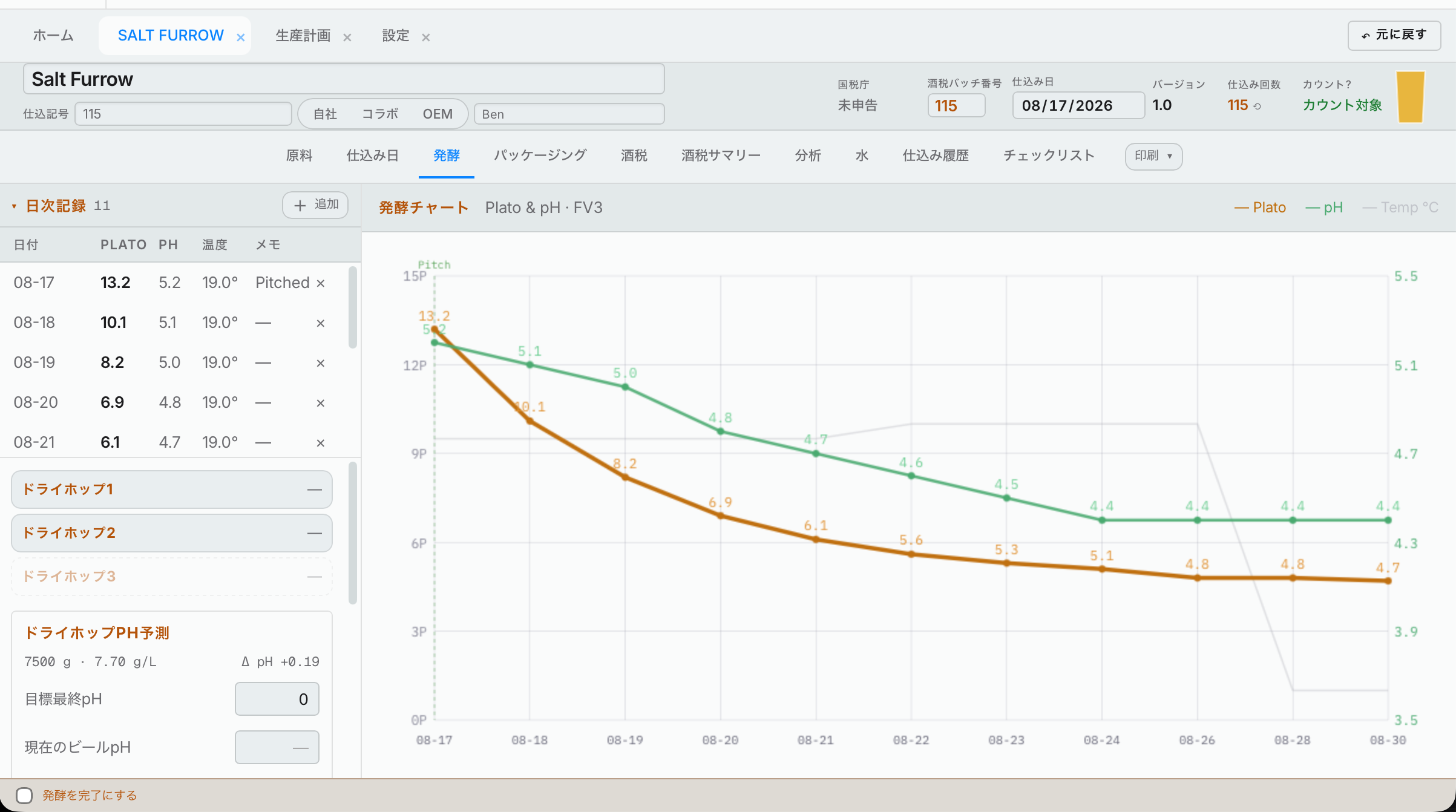
Press Add and put in the date, gravity (in °P or SG, whichever you picked in Settings → Units), pH and the rest. Hakkotome draws a chart of gravity and pH over time from your readings.
The ABV column beside each gravity reading is the apparent alcohol at that reading. It is worked out, never typed: from the measured original gravity you put on the Brew Day tab and the reading's own gravity. It shows "—" until the measured original gravity is on the Brew Day tab, or when a reading is above it. It is not on the phone's Ferm tab, and it changes no tax figure.
7.2Dry hops
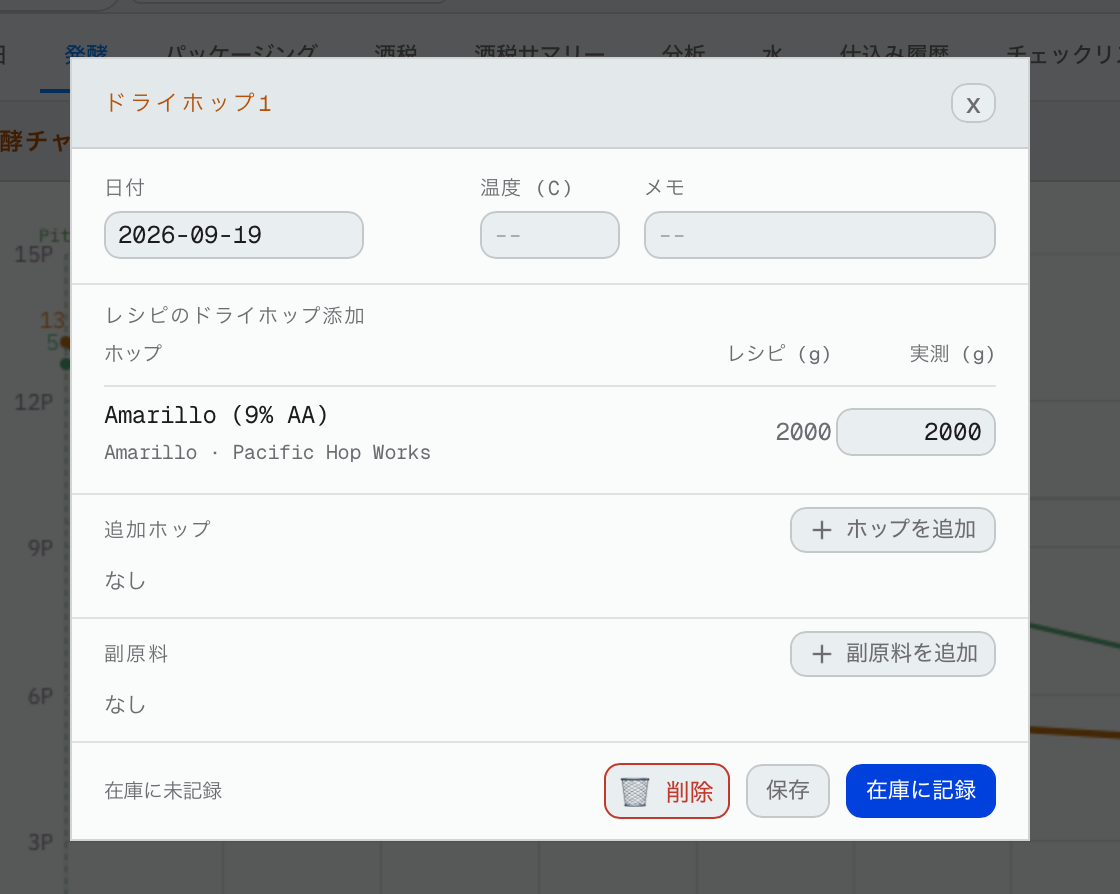
You'll see Dry hop 1, 2 and 3. A dry hop the recipe doesn't use is pale, with no box around it.
- Press Dry hop 1. Its window opens.
- Pick the right date, and put the temperature and any notes.
- It shows the dry hops from the recipe. If what you actually added was different, change the actual amount. Example: the recipe calls for 10 kg and you put 5 kg in. It asks you: - Carry to DH2: the other 5 kg moves to dry hop 2, which lights up if it wasn't used, with a line saying Carried from DH1. (Dry hop 3 has no carry.) - That's all: you dry hopped short on purpose.
- To add more, press Add Hop (under Additional hops) or Add Adjunct.
- Press Record to Inventory. It comes out of your inventory and goes on your tax inventory. Recorded by mistake? Restock puts it back.
A couple of days later, do dry hop 2 the same way.
7.3Dry hop pH
Under the dry hops is the dry hop pH prediction.
- Target final pH comes from the recipe. You can't change it here; change it on the recipe.
- Type your current pH and the dry hop temperature (for your records), then the acid you'll use and its concentration. It predicts how much acid brings the pH back down.
This is a guide only. Predicting pH after fermentation is very hard, with a lot of things that can't really be calculated. Go by your own experience too. If the amount looks high, start lower: you can always add more.
7.4Harvesting yeast
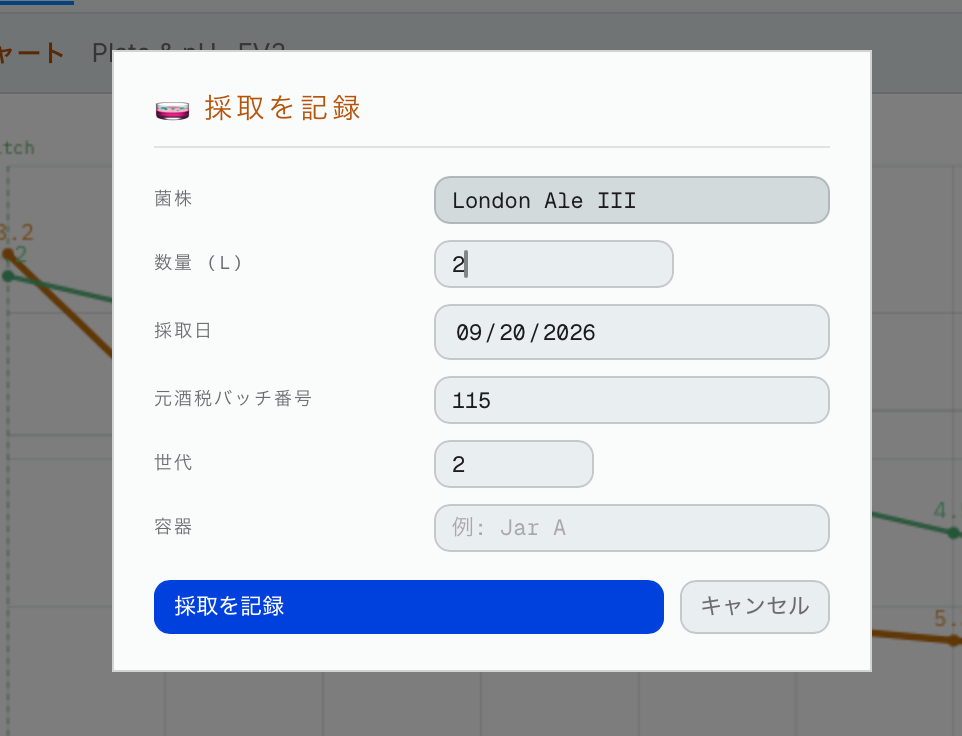
Under that is Harvest. Put how many liters you harvested and the container's name (the tax office wants both), then press Log harvest to inventory. A Log harvest window opens with everything filled in (strain, date, tax batch, generation, and the jar with its liters); check it and press Log harvest. It goes into your inventory under that yeast.
- One line per jar. Enough for two beers? Press Add a jar and put each jar with its liters: J1 15 L and J2 15 L. Both come from this beer, so on the chart both lines start here.
- The jar is suggested for you. If this beer was pitched from J1, J1 is already filled in (pitching emptied it) and it says J1 is the jar this beer was pitched from. Just check it. Keep using J1 and it stays one line on the chart.
- A full jar can't be used. If a jar still has yeast in it (any yeast), it turns red and says how much is still in it: empty it first (see 14.4) or pick another jar. The jar box offers the empty jars you've used before.
- The jar is only a note: your tax records keep the yeast by its name, never by jar.
The jar name has to be filled in before a harvest can be logged.
7.5Finish fermentation
When fermentation is done, press Mark fermentation as complete. Next is packaging.