Packaging and conditioning
On packaging day, open the recipe's Packaging tab (packaging and conditioning).
8.1Transfer
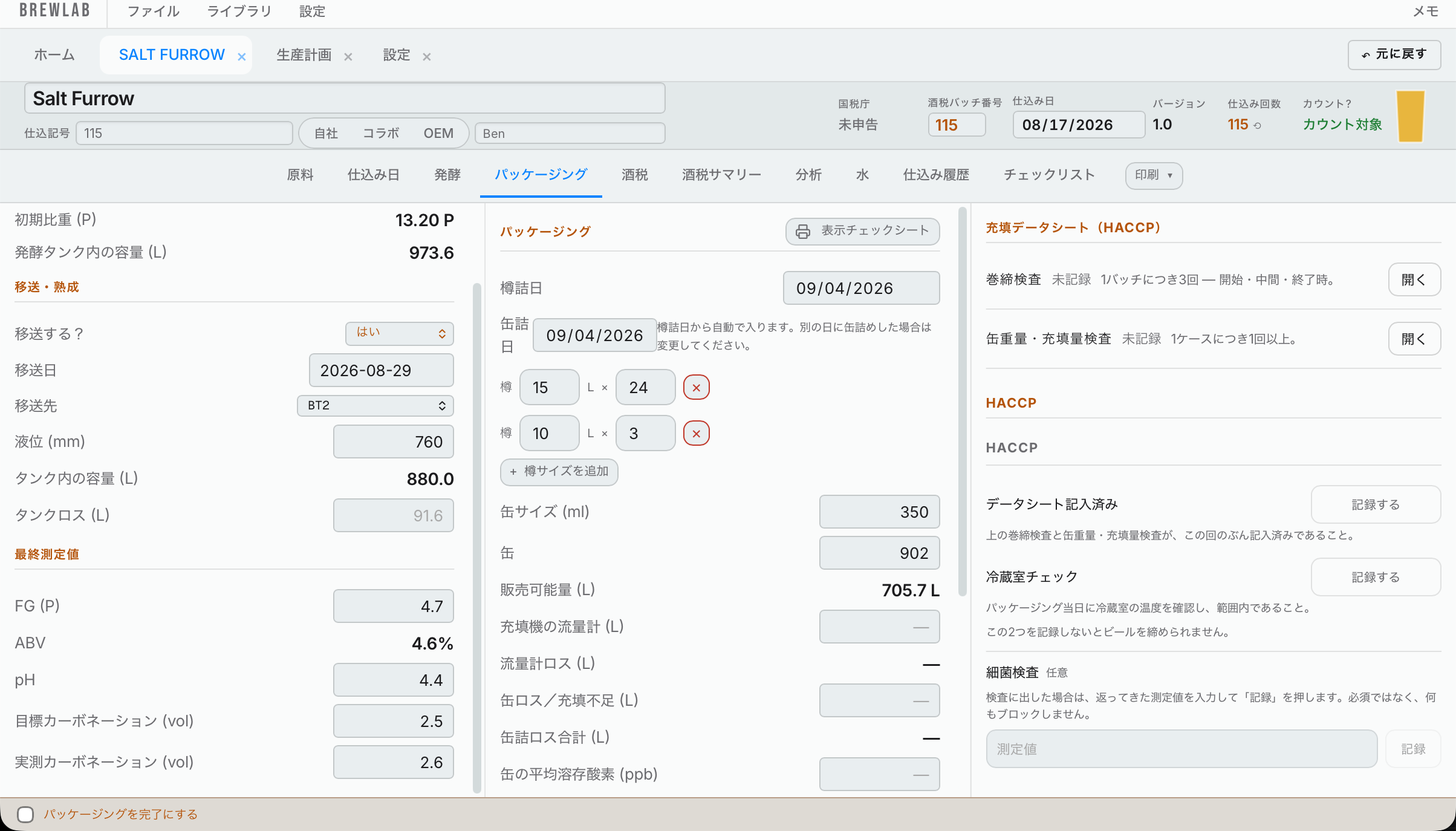
If you move the beer to another tank, set Transfer to Yes, then put the transfer date and the tank it's going into. The tank and the date are normally already filled in from the production schedule, where you planned the transfer. If it changed, pick a different one here: any tank, fermenters too, since you might transfer into another unitank. That moves the transfer on the production schedule as well, and warns you if the tank is already booked, the same as the fermenter on Brew Day. If the beer is on the schedule with no transfer yet, putting the date and the tank here adds the transfer to the schedule.
Put the dipstick reading (mm) of the tank it went into; it shows the liters.
Tank waste is worked out for you: the liters that went into the fermenter minus the liters that arrived in this tank. There's no box to type over it: it's the same figure that goes on your tax record. If it looks wrong, check your two dipstick readings.
8.2Final readings
Put the final gravity and final pH.
Planned carbonation shows what you set on the recipe (it can't be changed here). Under it, put the actual carbonation and the DO (dissolved oxygen) level you measured. The DO is in ppb (parts per billion).
8.3Label check sheet
On the Packaging tab, press Label check sheet and print it. There's one page for each container you fill (for example 15 L keg, 10 L keg, can). Check each item against your label and tick the boxes by hand; the tax office likes them hand-ticked.
Fill in the lines that are the same on every label once, in Settings → Brewery → Label check sheet (the manufacturer line, the address as printed, the under-20 warning word for word, the can's recycling mark, and storage, best-before and contact if you print them). Anything left blank prints as 「未設定」 (not set). Everything else fills itself in from the beer: the volume from the container, the category, and for a happoshu its malt ratio. The ingredient origin is the Origin country of the heaviest ingredient, taken from that malt in your library (Libraries → Fermentables, or the malt's window on the recipe) — so if it prints wrong or 「原産地未設定」 (no origin set), fix it there. Always double-check the printed sheet against your actual label before you rely on it. Put the ABV printed on this beer's label in Label ABV on the Packaging tab; the sheet checks it's within 1% of the measured ABV. Example: the beer measures 5.3%, you print 5.5% on the label: that's inside the allowed 4.3–6.3%. The printed sheet is in Japanese only, laid out like the tax office's own form.
8.4Cans and kegs
- Dates: put the Keg date. The Can date fills in from it; change it if you canned on another day. Your tax records use the earliest day you actually packaged something.
- Cans: put the can size and how many cans.
- Kegs: put how many kegs of each size you filled. The sizes come from Settings → Tanks → Keg sizes. Add keg size adds a size for this beer only (for example a borrowed 19 L keg). It still goes on your tax records, in its own column.
It shows how many liters you have to sell.
8.5Packaging waste
- Flowmeter: if you have one, put the liters it showed. Hakkotome works out the canning waste from it.
- Can waste / low fills: the liters lost while canning. Also put the number of cans in Low-fill cans (number). It doesn't go on the tax sheets, but it's kept with the beer's records (and on the beer's record saved to Drive) in case your tax office asks.
- Average can DO: the dissolved oxygen you measured in the cans.
- Keg waste: the liters lost while kegging.
- Left in the tank (L): shown only when you package straight from the fermenter (no transfer to a bright tank). If beer stays in the tank after filling, type the liters here. It is kept beer, not waste, so it comes off the unexplained leftover that would otherwise be filed as waste. It can never take off more than that leftover; anything above it is ignored. It does not change what you packaged, sold or paid tax on. If your brewery keeps the leftover-beer book, a button Add to the leftover-beer book writes one Kept back line for this batch (once per batch; you press it yourself, it is not automatic).
It adds these up into your total packaging waste.
8.6HACCP on packaging day
The Packaging tab has the packaging HACCP checks:
- Seam checks: three per batch: one at the start of the run, one in the middle, one at the end. Press Add a check for each one (the table starts empty), and add more if you want.
- Can weight / fill checks: at least one per case: the case number, the weight and the fill.
- Data Sheet filled out and Cold Room Check: two sign-offs. Both are needed before the beer can be closed out.
These are for your records, not something you hand in, but if anyone asks, the HACCP sheet is filled out.
Bacteria test: the result takes about a week to come back. On packaging day, press Sent. The test goes on HACCP → Test results → Canning bacteria with the tax batch number, beer name and date sent. When the result comes back, type it in there (or on this beer's Packaging tab) and press Save, even if the beer is already closed out. The list has a chart, so you can see how results change over time. Sent one by mistake? Press the X to cross it out. It's optional and never stops you closing out the beer.
Lab sample sent: when you send cans out of the brewery to a lab, press Sent on the Lab sample sent row. Type how many cans, the date you sent them and the lab (the lab is optional), then press Record it. It goes on the Sales Hub's Beer out list as a Lab sample at ¥0, so the stock goes down and the tax is counted: beer that leaves the brewery is taxed even when nobody pays for it. Recorded it by mistake? Cross the line out on the Sales Hub's Beer out page. The cans' size comes from this beer's can size; a beer with no cans can't send a lab sample. Samples you test inside the brewery are not this.
Beer received (optional): The Beer received book (移入) records beer that came INTO the brewery from another brewery, a warehouse or a friend: bought, swapped or given. It is on for every brewery. If you do not receive beer, turn it off in Settings → Brewery → Optional record books: its tile goes away and nothing already recorded is deleted. When it is on, Home → Tax & Compliance has a Beer received tile.
Fill in the date it arrived, who sent it, the beer's name, whether it is Beer or Happoshu, the keg or can size, and how many. Then say whether it arrived tax-unpaid (未納税移入, with the sender's shipping notice) or tax already paid. The alcohol, the extract, the tax amount, the price and the notice number are optional. The book shows the liters received, split by tax-paid and tax-unpaid.
Saving a receipt also puts the beer into stock. It appears in the Sales Hub's Beer out list as its own beer, so you can sell it, pour it in the taproom or send it back like any other beer. To undo a wrong entry, cross it out here; it comes out of stock too. The annual return counts tax-unpaid beer in box ⑦ and tax-paid beer in box ⑧.
Crossing out a delivery (24 Oct 2026): BrewLab refuses to cross out a delivery when some of that beer was already sold or sent out, or when the Beer out list cannot be read right now (it says which). Correct the sale on the Sales Hub's Beer out page first. Tax paid on the whole delivery: for a tax-paid delivery, type the tax in yen that the other brewery paid, from the receipt. The Tax Hub uses it to credit that tax back when you sell the beer on (re-shipment credit).
When beer arrives tax-unpaid, the receiving brewery fills in the receipt part of the shipper's notice (CC1-5404), sends the certificate back to the shipper at once, and files the receipt declaration by the last day of the next month. Keep the copy of the notice. BrewLab does not print these forms yet.
Dump beer: if you have to pour a batch away, press Dump on the Dump beer row. The form fills itself in from the beer: the tank, the batch number, the liters in the tank, the ABV and the extract (the last gravity reading). Change anything that's wrong, then type the date and time, Why it was dumped and What happens to it next, and press File the record. Filing prints the loss notice, which goes to the tax office before the beer is thrown away: file it first, then dump.
Example: FV1 got infected. Press Dump: it already says FV1, batch 012, 1,190 L and 3.6 °P. Type "lactic infection, sour" for why and "drained to the waste line the same day" for what happens next, then file it.
Filing it does two things:
- It saves a HACCP record, so the dump shows on HACCP → Records.
- It opens the loss notice (亡失・腐敗届出書, CC1-5613 — the notice of lost or spoiled liquor) filled in, ready to print and hand in to your tax office. It uses your address, company, representative, corporate number and tax office from Settings → Brewery → Official details, so fill those in first.
A dump can't be changed or deleted afterwards, because it's a HACCP record. If you get it wrong, file another one.
8.7Finish packaging
At the bottom of the Packaging tab, press Mark packaging complete. That ticks it off the beer's checklist.