Tax records for the beer
The beer is packaged and put away. Open the recipe's Tax tab.
9.1The Tax tab
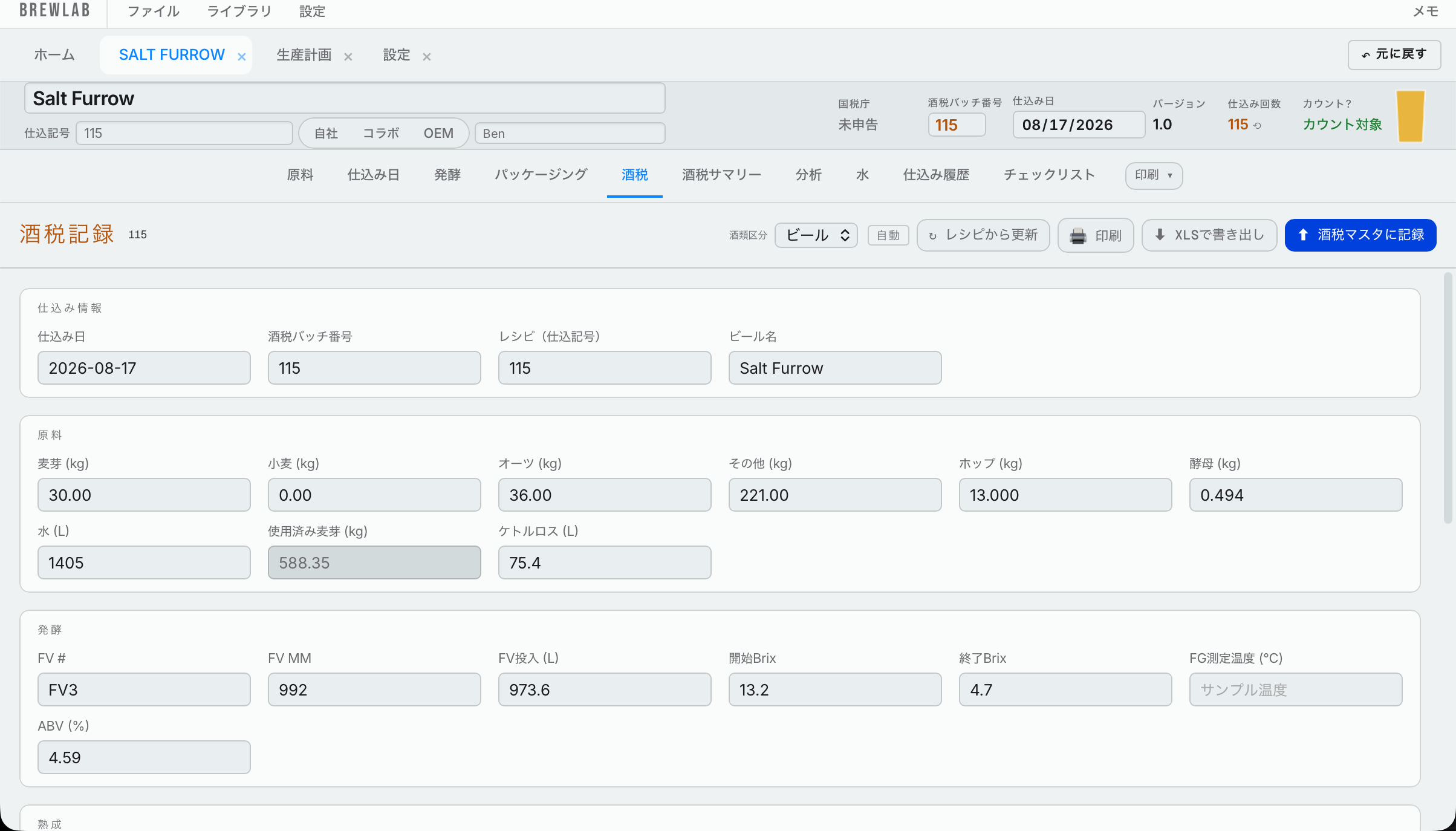
- Check the classification is right: Beer or Happoshu.
- Press Update from recipe. It pulls everything from brewing, fermentation and packaging into the tax paperwork.
- If anything is missing, it tells you what's still blank.
- Check all the numbers. Whether a grain counts as malt comes from your malt library (the Malted tick in Libraries → Fermentables), the same answer the beer / happoshu check uses. Rice, flaked grains and fruit go to other. Misc ingredients count when their Type in Libraries → Misc is Flavor, Spice or Herb, the same as on the recipe submitter; water salts, acids, finings, nutrients and enzymes are left out (see misc types).
At the bottom is Testing and miscellaneous waste: where your waste came from. It counts the samples from your fermentation readings, and you can add more miscellaneous waste.
You can print it to keep a paper copy, or export it to Excel.
When it all looks right, press Record to Tax Master. If something is still missing, it asks whether that's OK; press OK to go ahead. It's then in the Tax Master.
9.2Tax summary
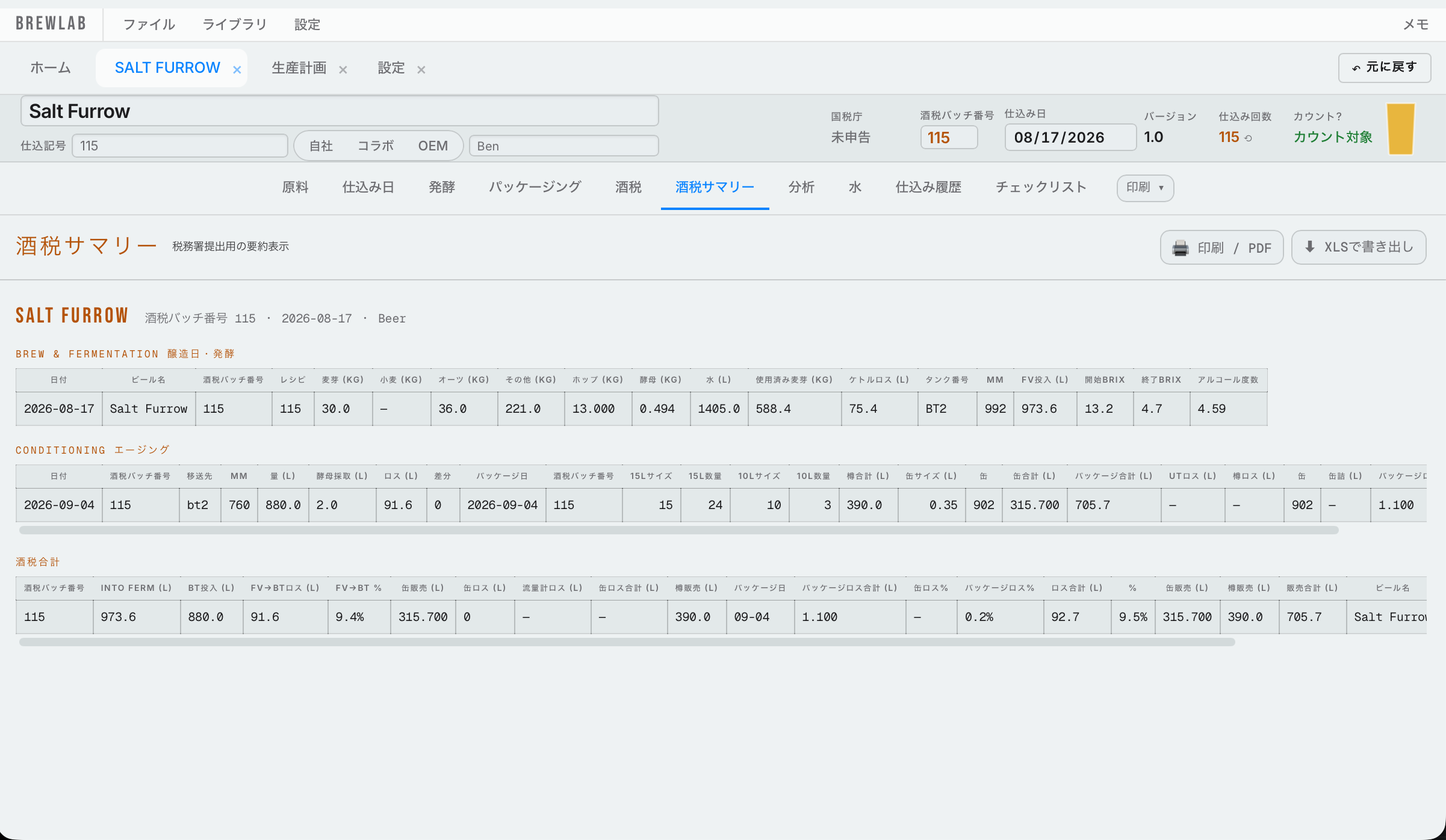
The Tax summary tab has the same figures, laid out the way the tax office prefers. It's smaller and harder to read on screen, but it's the one to keep. The brewing row shows the fermenter and its mm; the conditioning row shows the tank the beer went into. Both use the tank names from Settings → Tanks.
We recommend keeping every beer's tax summary in two places: press Print and keep a paper copy on file in the office (the print window can also save it as a PDF), and press Export to download an Excel copy.