Making a recipe
4.1Your fermenters on Home
Home also shows a list of your fermenters. When you're just starting, they're all empty. They fill in when you put a beer in one or plan a beer for one. (The other things on Home are covered later.)
4.2Start a new recipe
- On Home, press New recipe.
- Type the beer's name and pick its style.
Or start from a template: type the recipe name, then pick one of your templates.
4.3Templates
A template is a recipe that's already filled in. A new recipe made from it starts with everything the template has: the ingredients, the mash and the rest. You only change the one or two things that are different.
Example: every time you get a new hop, you brew a test beer with the same malt, mash and water, and the hops split between Mosaic, Citra and the new hop. Save that beer as a template. Next time a new hop comes in, make a new recipe from the template and just swap in the new hop.
As long as you don't change the percentages, the recipe keeps its tax ID: the name you submitted to the tax office for that beer. The template keeps that name, the mash and the water, as well as the ingredients.
When you save a template you give it two things: a name for the template itself, and its tax name (the recipe code, 仕込記号 — the brewing mark). The tax name is required. Hakkotome will not save a template without one.
A template cannot be changed afterwards. You can't edit it and you can't rename it. That's on purpose: the tax name on a template is the one you declared to the tax office, so if the template could be edited underneath that name, what you declared and what you brew would drift apart. If you want a different template, make a new one and delete the old one.
When you make a recipe from a template, you type the beer name — what you call it on the label. The tax name comes from the template and stays as it is. So you can brew Gavan IPA, Summer Gavan and Gavan – Nelson from one template and all three carry the same declared tax name.
Example: your template is called Hazy base with the tax name HZ-01. You make a recipe from it and type the beer name Kokura Haze. The new recipe is Kokura Haze on the label and HZ-01 on the paperwork.
If you saved a template before this was added, it has no tax name. The list says No tax name on that row, and a recipe made from it starts with no tax name — you type one on the recipe. It can't be added to the old template, because templates can't be edited.
Templates also help you plan your malt quota for the coming year: the tariff planner plans future brews from your templates.
Make a template for each kind of beer you brew often, for example Hazy and Hazy – thick.
Save a recipe as a template: open the recipe, then File → Save as Template, and give the template a name. From then on, when you make a new recipe, you can start it from that template.
Why a template and not a copy? You can also duplicate a recipe and change the ingredients. But a template is kept ready and set up: the mash, the tax name and the rest are all saved, and it helps with your malt quota planning (see Annual Planner). A duplicate is a brand-new beer: it starts its own brew history, with none of the original's brews in it.
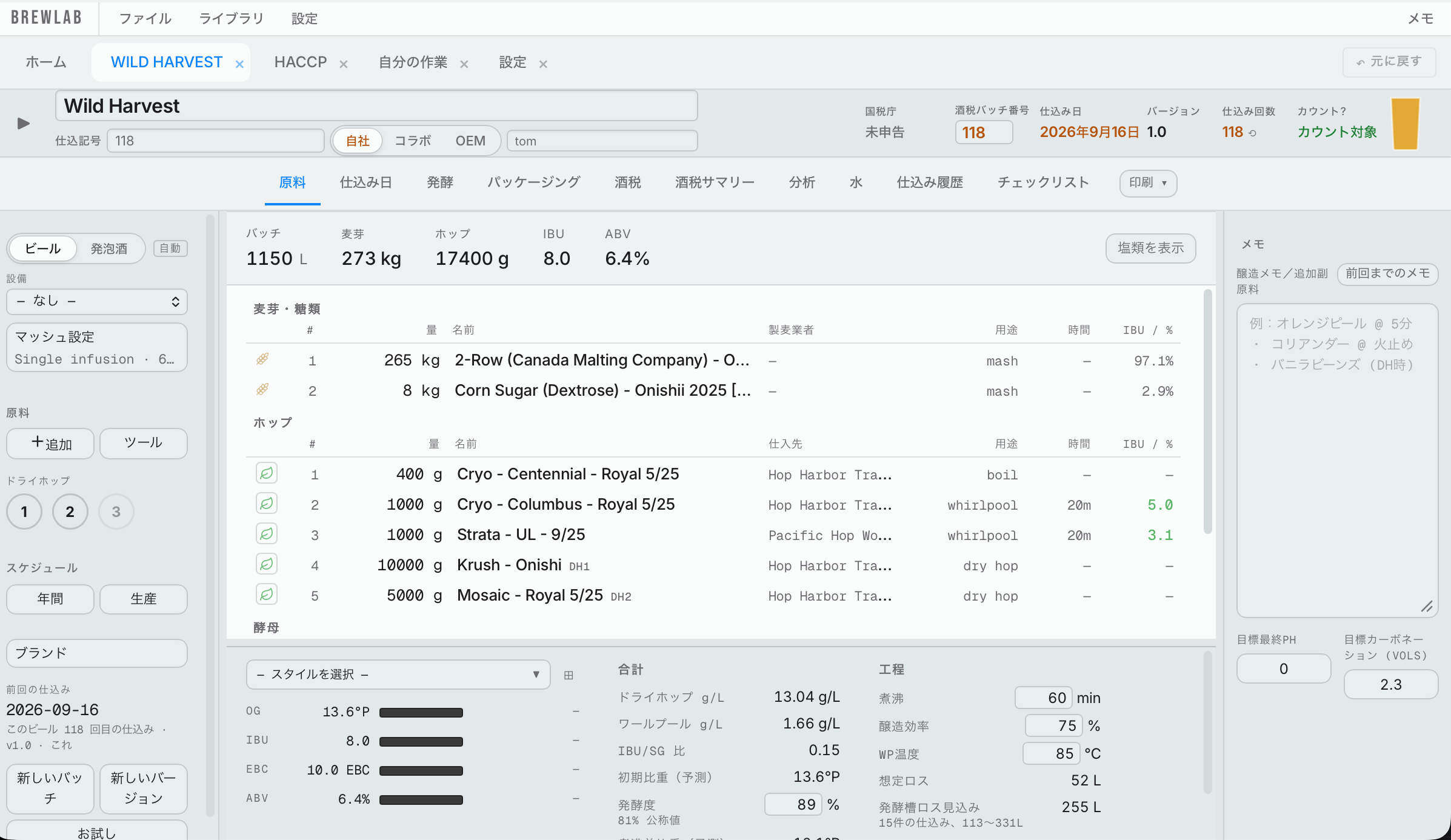
4.4The top row of a recipe
Across the top of every recipe:
- The beer's name.
- Recipe code (仕込記号, "brew code"): the code this recipe was declared under with the tax office. This is your tax ID for the beer.
- Own / Collab / OEM: who the beer is made for. Own is your own brewery; put the brewer to the right. Collab: put who you're brewing it with. OEM: put who you're making it for. This helps later when you search your old recipes.
- NTA: whether this recipe has been declared to the tax office. Press it to open the recipe submitter (covered after making the recipe).
- Tax Batch # (酒税バッチ番号): the brewery-wide number you give the tax office for each batch you brew. Next to it is the suggested next number, so you don't lose track. It fills in by itself the first time you save brew day, carrying on from your highest number so far.
- Brew date: press it and pick the date you plan to brew.
- Version: starts at 1. Use it to follow the beer through its history. For a small change, like swapping a malt or a hop, go to 1.1, 1.2, 1.3. For a big change, go to 2.0, then 2.1 and so on. More on versions later.
- Times Brewed: how many times you've brewed this recipe.
- Count?: whether this brew counts in Times Brewed. Every brew is still counted for tax. If you dumped a batch and don't want it in your count, press Counted and it changes to Excluded. That brew then gets no number, and the next brew takes its place.
- Color: the estimated color of the beer.
Discuss this in the Team Hub (6 Oct 2026): with a recipe open, choose File → Discuss this in the Team Hub…. Pick where it should go: a chat (they are grouped under their project, finished projects last) or Message a person. Type your message and press Send. It appears in the Team Hub with a link that opens this beer back in Hakkotome, and Open the conversation takes you to it. It only sends a message; it does not make a new project. The menu item only shows when your brewery's Team Hub is set up. Not yet tried live.
4.5The tabs
Under the top row are the tabs: Ingredients, Brew Day, Fermentation, Packaging and the rest. Each one is a step in brewing the beer. They're covered one by one below.
4.6Beer or happoshu (発泡酒)
At the top of the left panel you choose Beer or Happoshu (発泡酒, a lower-malt beer taxed differently). Next to it is Auto.
On Auto, Hakkotome decides for you, and your tax pages record it:
- If the recipe uses an ingredient that makes a beer happoshu (for example, carrageenan), it switches to Happoshu. You mark those ingredients in your library, so every recipe that uses them switches by itself.
- If fruit, spices and herbs add up to more than 5% of the malt weight, it switches to Happoshu. Example: 10% fruit makes the beer happoshu. A note beside the switch tells you why. You mark which ingredients are fruit, spices or herbs in your library.
- If malt is less than half of the ingredients that count (hops and water don't count), it switches to Happoshu.
If you know something about the beer that Hakkotome can't, press Beer or Happoshu yourself. It then shows Manual in red, so you can see it was set by hand. Press it again to go back to Auto.
4.7Equipment and mash
- Equipment: pick the equipment profile for this beer.
- Mash Profile: press it to load a saved mash profile or make a new one for this recipe. Change the water ratio, add steps and decoctions, the same way as in Settings.
Cereal mash in a recipe: press Cereal mash and the calculator opens.
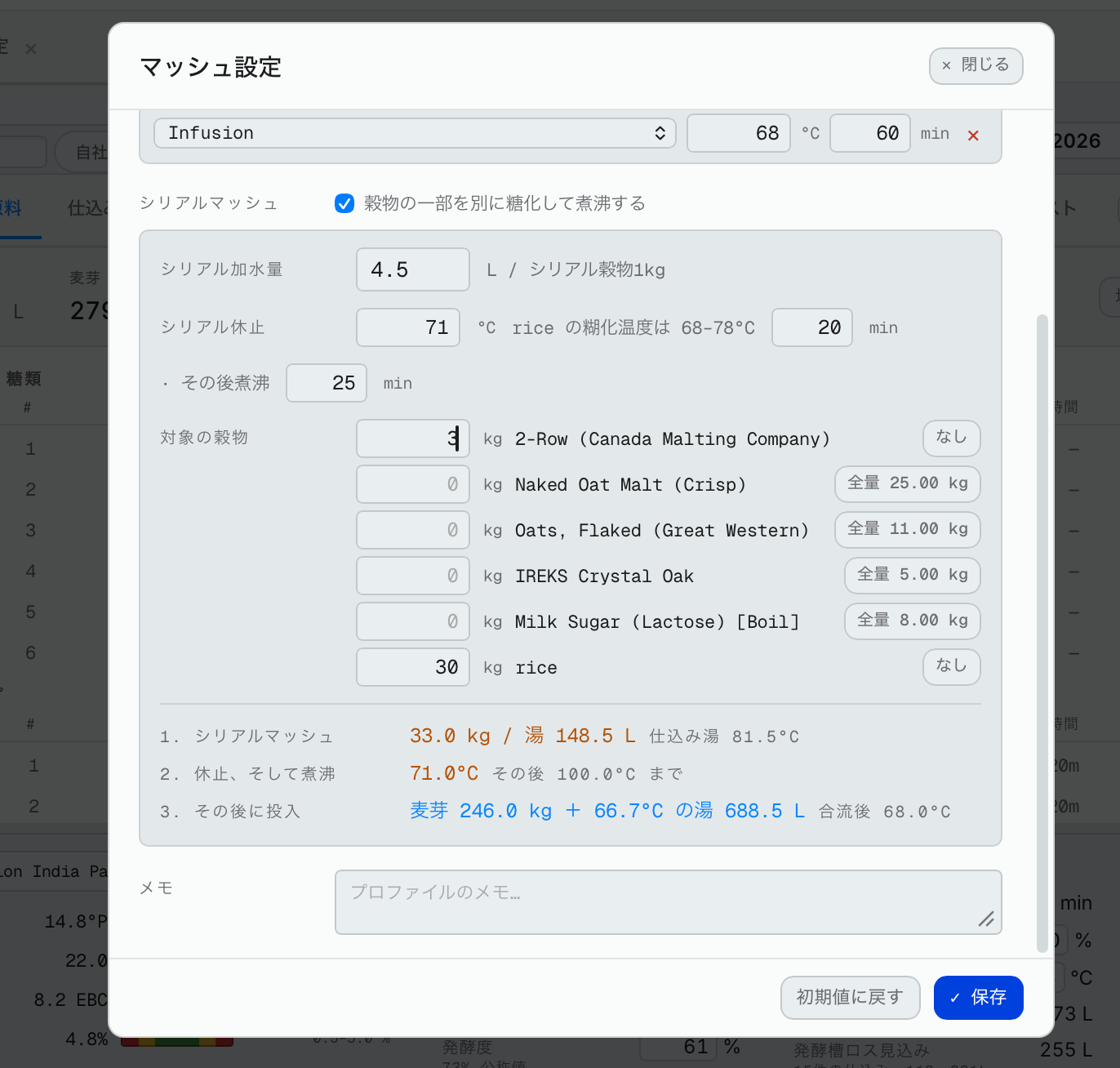
It shows what you set: the water ratio, the rest temperature and time, and how long it boils. Then choose which grains go in it. For example, corn plus 5% of a base malt, so there are enough enzymes to convert it.
At the bottom it then tells you the strike for the cereal mash, the rest, the boil, and then what to add to hit the first step of your main mash.
The first step of your mash is always your mash in (an infusion or the first rest of a step mash), because everything builds from there.
Example: your step mash starts at 65°C. You cereal mash 25 kg of your 275 kg of grain. After the cereal mash boils, Hakkotome tells you to add the other 250 kg of grain and the rest of your mash water, and the temperature to hit with that water — something like 745 L at 66°C. Together with the boiling cereal mash, that lands the whole mash on 65°C. The water amount and its temperature come from your own mash ratio, your cereal ratio and how cold the brewhouse is that day, so your numbers will be your own.
4.8Add the ingredients
On the left panel, press + Add. Go through the grains, hops, yeast and miscellaneous. Pick the ingredient and put the amount.
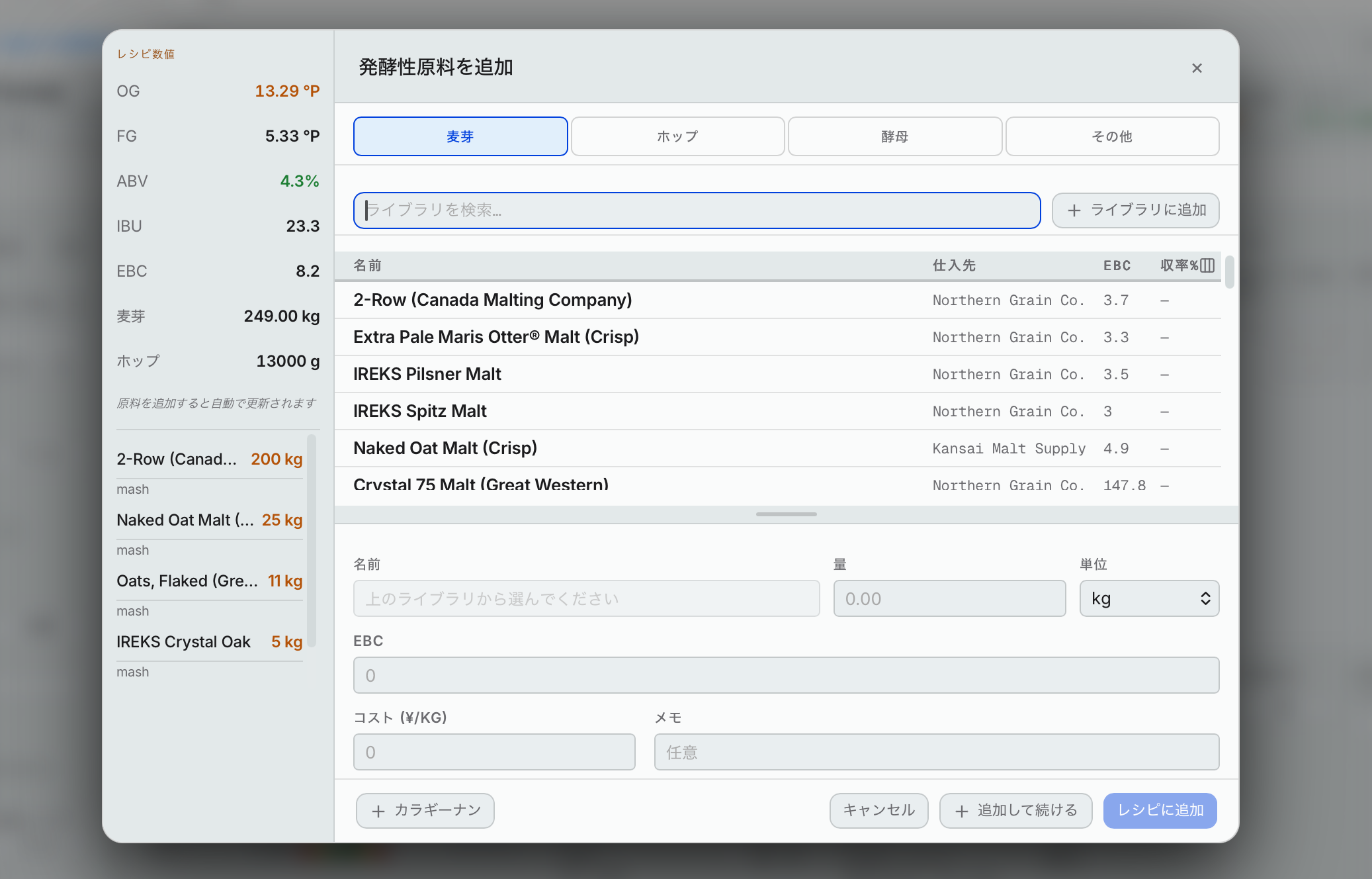
The cost comes from your library if it's filled in there. If not, or if it needs changing, put it in here. Add any notes you want.
As you add, the recipe numbers on the left (gravity, bitterness, color, ABV) update.
+ Carrageenan adds carrageenan in one press, at 30 g per 1,200 L scaled to your batch (about 29 g for 1,150 L). Because carrageenan makes a beer happoshu, the beer switches to happoshu.
Lot numbers: you don't choose a lot on the recipe. The recipe just says the ingredient, for example Citra. You type the lot number once, when the delivery arrives, and pick which lot you used when you record usage on brew day or at a dry hop. Once it's recorded, the recipe line shows the lot that actually went in, next to the ingredient's name. Example: Citra …382 · 2025. It's a record, not a box you can change — to fix it, fix the ledger entry.
Something that isn't in your library
Type its name and press Add to the library. The full library form opens. Fill in:
- the name, the maltster (who makes it) and the supplier (who you buy it from, used for ordering)
- whether it's a base malt
- Malted / unmalted and fruit or spice: these decide whether the beer is happoshu
- the price
- the yield. You have to fill this in, or the recipe can't be worked out.
- the origin country: the country it comes from. Japan counts as domestic malt and any other country as imported on your malt quota form. It's also what the label check sheet prints as the ingredient origin (原料原産地, where the main ingredient comes from).
- Does not ferment (for example lactose), and Added to the kettle, not the mash. Tick that one for anything that goes in the boil rather than the mash, like sugar. It changes how Hakkotome works out the gravity (no mash efficiency is taken off it), and it's what puts the sugar on your printed brew day sheet with the boil additions. Example: you add 20 kg of dextrose at 10 minutes left in the boil: tick it on dextrose in the library, and it's on the brew day sheet.
It has to go in the library, not just be typed as a name, because the library is what connects the recipe to ordering and inventory. Without it, Hakkotome doesn't know what to take out of stock.
If a recipe has an ingredient that isn't in your library (for example, a beer you imported), it shows in amber. Tap it to add it to the library or replace it. Record usage won't take it out of stock until you do: it says Cannot record — action required, with Find match and Add to library.
Hops
Each hop variety is a group, with one line under it for each supplier you buy it from. That keeps the prices right, keeps your stock apart by who you bought from (you'll start to notice which supplier's hops you like), and helps with ordering. The inventory you give the tax office still lists hops by variety, not by supplier.
When you add a hop, choose when it goes in. For a dry hop, choose Dry hop and then which one: 1, 2 or 3. See dry hops.
Yeast
Put the Amount (grams for dry, liters for liquid). It is the one amount: the cell sums use it and it's what goes on your tax pages. Then choose the pitch profile (or Other to type a pitch rate), dry or liquid, and the targets for brew day: target pitch temperature, fermentation temperature and target pitch pH. They start blank; type them for each beer. At the bottom it shows the cells you need, the cells you have, and how far over or under you are. With no pitch profile chosen, it says so instead of guessing.
Example (dry): 1,150 L at 12 °P with Ale – standard (0.75) needs 0.75 million × 1,150,000 mL × 12 = about 10.35 T (10.35 trillion cells). The packet says 6 billion per gram, so it asks for about 1,725 g.
Harvested yeast
Choose Harvested, then pick from your harvested stock. Every time you harvest yeast you record it, and it goes into your tax inventory and into the harvested stock. That's how the tax office sees what was harvested from which beer and where it went. Picking from the stock fills in which brew it came from and the generation.
You can't harvest yeast from a happoshu and pitch it into a beer.
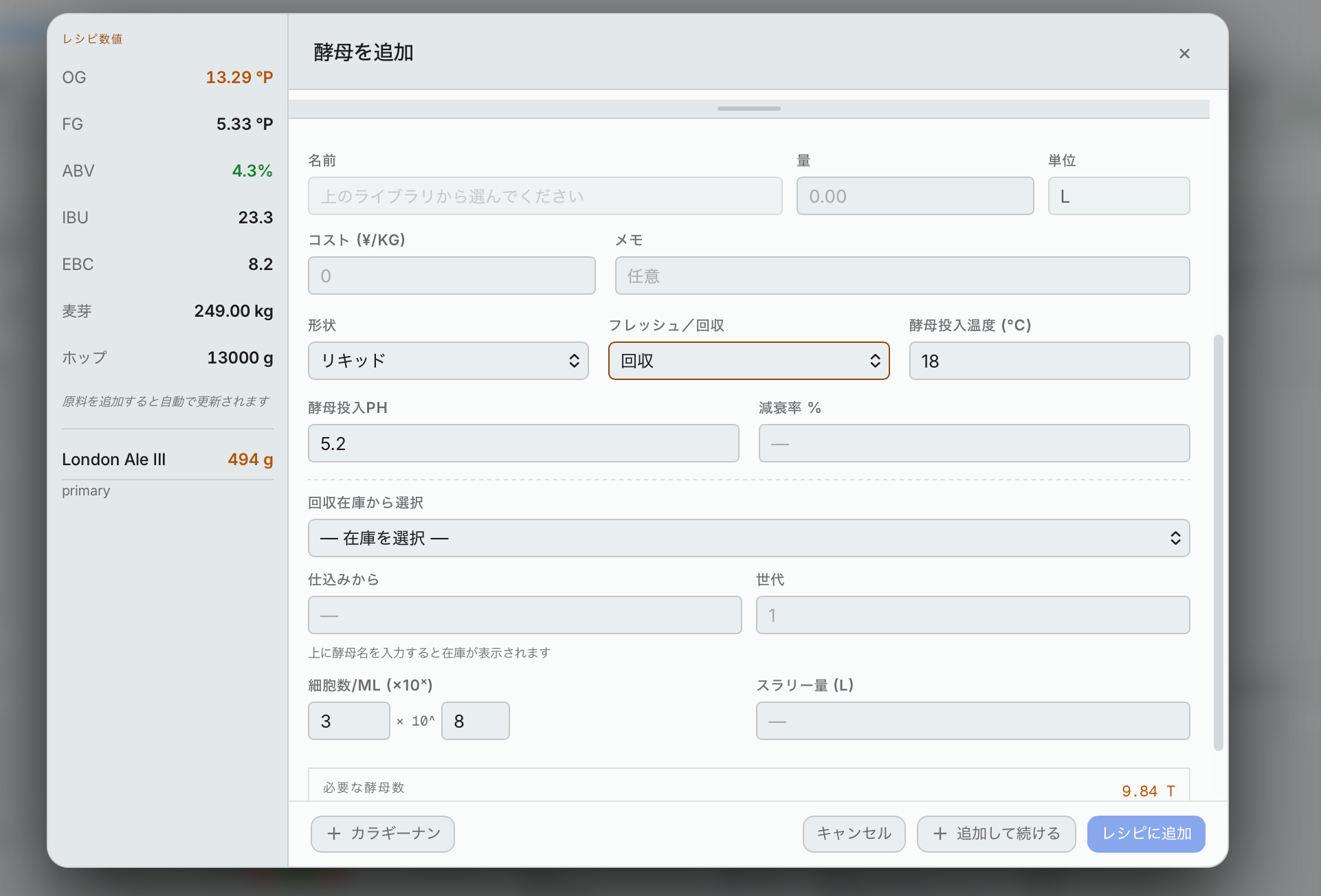
Hakkotome stops you if you try: in the list of harvested yeast, anything harvested from a happoshu is greyed out when the recipe is a beer.
Then put the cell count and the Amount (in liters). Count your yeast on brew day or the day before, and put the count in then by editing the yeast on the recipe: the edit window is the same form as the add window. The Amount works out the cells you have and it's what goes on your tax pages. The cell count starts blank; put your count. Under it are two buttons:
- Average slurry fills in 1.2×10⁹ cells/mL — what a 40–60% solids slurry usually holds (Wyeast). Use it when you haven't counted.
- Count it opens the cell counter (the same one as in Calculations, see 28.1). Put in what you counted under the microscope and press Use this count: the live cells per mL go in the box, and the viability (how many of the cells are alive) is kept with the yeast. It shows under the box as Counted: 92.5% viable, in red under 85%.
Picking a jar from the harvested stock links this yeast to that harvest (the jar's name shows in the list, for example [J1] 15.0L — Gen 3, and under it Hakkotome says which jar it's linked to). Only jars with yeast in them are listed. That link is how the beer follows its yeast: the jar is suggested when you record usage and when you harvest this beer, and the count reaches the chart on Inventory → Harvested (see 14.4).
Slurry is always in liters, never grams. For dry yeast, Hakkotome needs the cells per gram printed on the maker's packet, typed on that yeast in Libraries → Yeast (for example 6 for a packet that says 6 billion per gram); without it, it says so instead of guessing.
Misc types: what goes on the tax pages
Every misc ingredient in Libraries → Misc has a Type, and the Type decides whether it goes on your tax pages. The Type list is split under two headings:
- Counts as an ingredient (on the Tax tab and the recipe submission): Flavor, Spice, Herb. Example: fruit purée, a Gose's sea salt, coriander, lactose.
- Not an ingredient (left off the tax pages): Water salt, Acid, Fining, Nutrient, Enzyme. Example: gypsum, lactic acid, Whirlfloc, yeast nutrient.
The list in Libraries → Misc shows which way each one goes. If any misc ingredient has no Type yet (older libraries and imports), a box at the top of Libraries → Misc lists them: pick a Type for each one. Until you do, Hakkotome goes by the name, the old way.
4.9Tools
When all the ingredients are in, close the add window. Next to + Add is Tools.
- Scale: change the recipe to a different batch size, for example if you set it up at the wrong size.
- Grain %: set the grain bill by percent instead of by weight. Each percent is taken of the grain total you started with. Example: your grains total 273 kg. Set 2-row to 50% and it becomes 136.5 kg; the other rows don't move. Apply only works once the percents add up to 100% again.
- OG / ABV: aim for a different strength. Example: the recipe is 6.7% and you want 8%. Press + until the target reads 8.0%, then press Apply. It adds more grain, keeping the grain bill at the same percentages.
- Hop IBUs: set how much bitterness one hop gives. Example: a hop gives 8 IBU and you want 25 from it. Type 25 and Hakkotome works out the new amount of that hop.
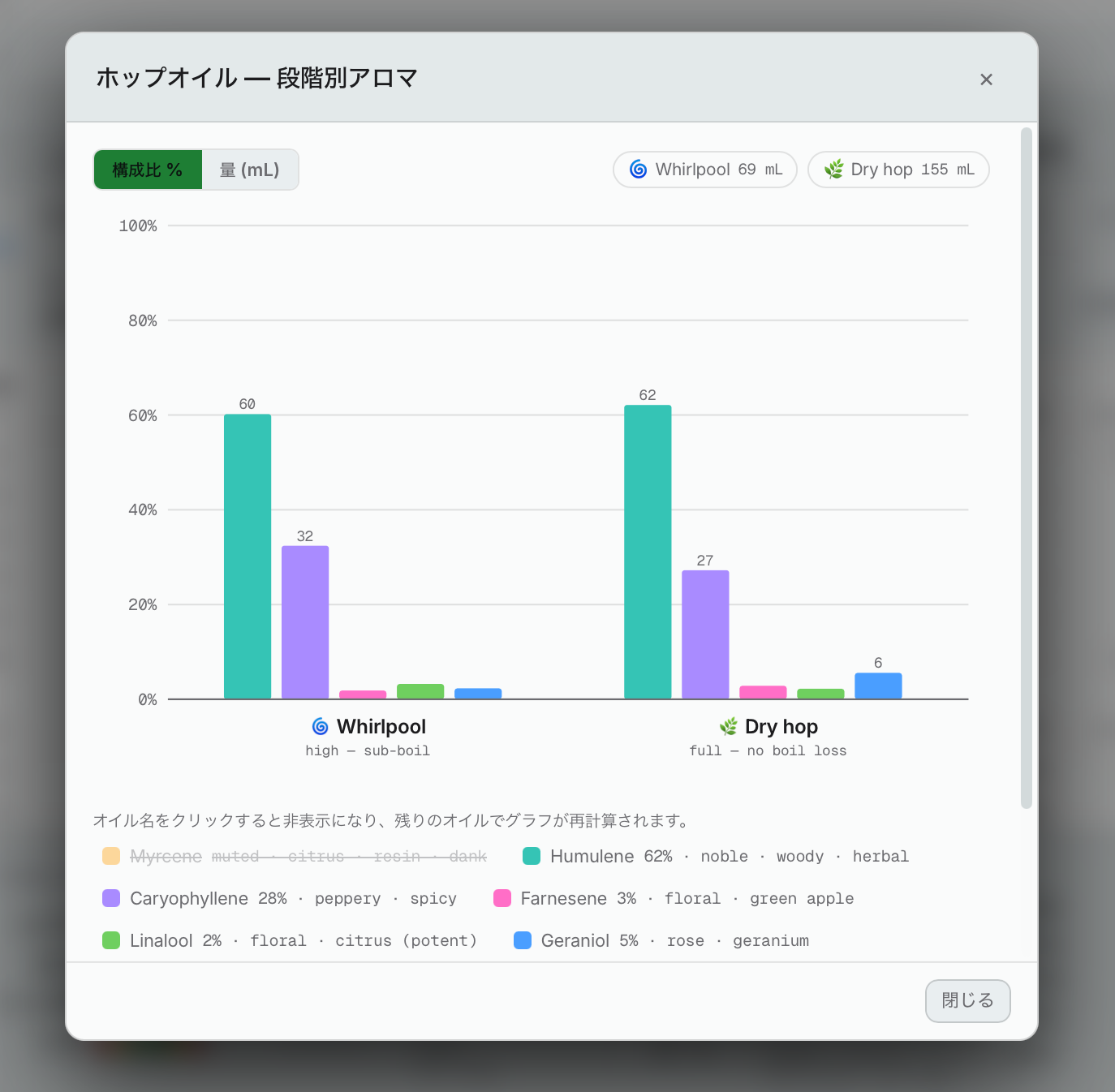
- Hop oils: shows the oils your hops bring, stage by stage (boil, whirlpool, dry hop). Show it by composition (percent) or by mL (the real amount). Click an oil to hide it. Example: myrcene is usually much the highest, so hide it and the rest are shown as percents of what's left, so you can still compare them on the bar chart. Hide or keep as many as you want. Click a stage to hide that stage.
4.10Dip hop
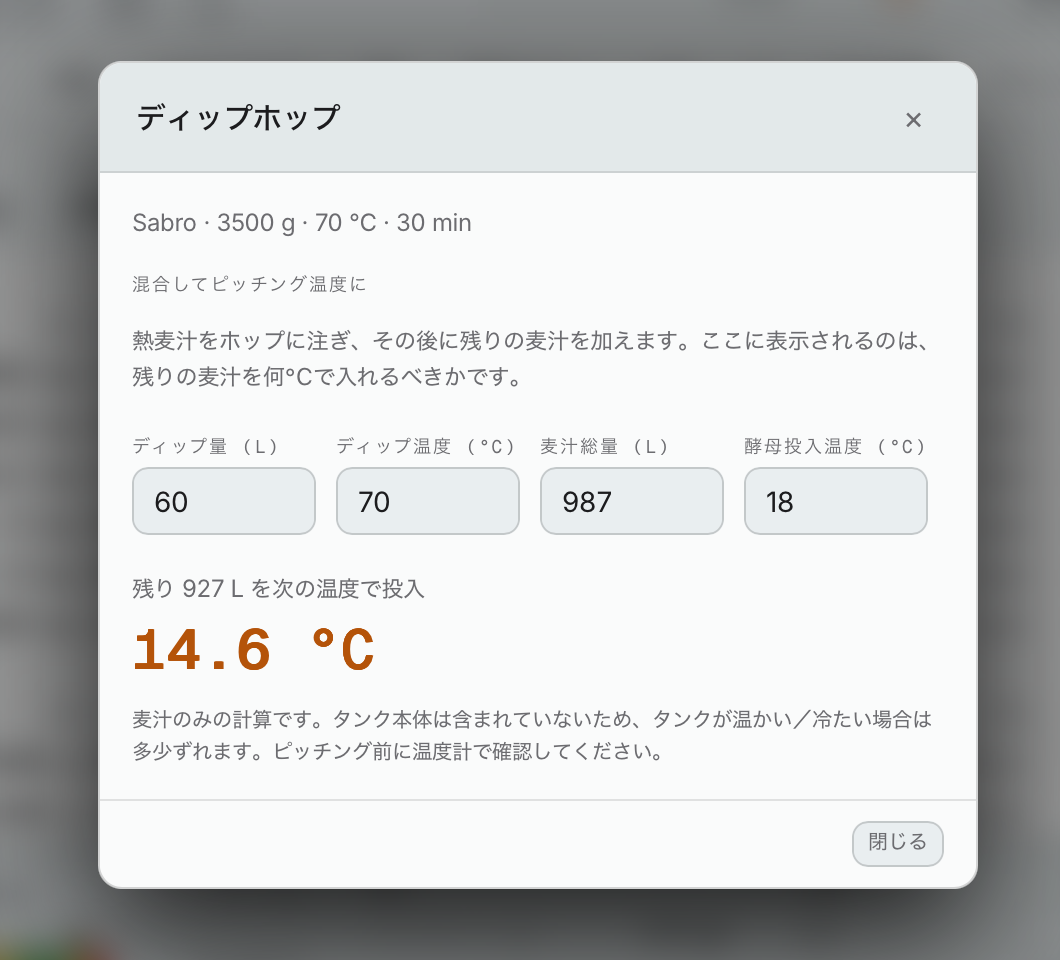
A dip hop is hops steeped in a little hot wort in the fermenter, with the rest of the wort added on top. To add one, pick Dip Hop as the use when you add the hop, and put the dip temperature. The recipe then shows a Dip hop circle on the left, next to the dry hops. Press it and put how many liters of hot wort you dip with, its temperature, the total wort and your pitch temperature. It tells you what temperature the rest of the wort has to go in at so the whole batch lands on pitch temperature. Example: 60 L at 70 °C in a 987 L batch pitched at 18 °C: the other 927 L goes in at 14.6 °C. It counts the wort only, so a warm or cold tank moves it a little. Check with a thermometer before you pitch.
4.11Recycled hops
Spent hops from a dry hop you already brewed can be reused in a boil or whirlpool addition on a different recipe — a second life for hops you'd otherwise throw out. Never on a dry hop — spent hops go back into the kettle of a new beer, they don't get dry-hopped with a second time, so the tick box only appears when the use is Boil or Whirlpool.
To use it: tick Recycled (it sits next to Time and WP Temp on the same row). A box opens below:
- Recycled from: pick the recipe the spent hops came from, from a list of your 40 most recently brewed recipes, tax batch number first (with a small gap before the name, so the numbers line up and are easy to scan) — the way you actually think of a past batch, as "recycled from 115" rather than by its name.
- Don't know the recipe, or it isn't tracked in Hakkotome? Press + and type the blend yourself instead: one or more hop varieties and what percent of the slurry each one is. It should add up to 100% — Hakkotome warns you if it doesn't.
What Hakkotome does with it: the weight you enter on the ingredient row is still the full wet slurry weight — that's what's recorded for tax and what draws down your Hop Slurry inventory, and recycling never changes either of those. Behind the scenes, for the flavor math only (bitterness and hop oil), Hakkotome:
- Pulls together every dry hop on the source recipe (DH1, DH2, DH3, whatever varieties) into one blend, weighted by how many grams of each — because by the time you scoop spent hops out, they're already mixed together.
- Converts the wet weight you entered back to a dry-hop-equivalent weight, using the 1 kg hops → __ kg slurry number in Settings → Advanced (15 by default — one kilogram of dry hops becomes about 15 kg of wet slurry once it's soaked up wort).
- Reduces the alpha acid and hop oil by the Alpha Acid Retention and Oil Retention percentages, also in Settings → Advanced (77% and 51% by default) — hops that have already been used once are weaker than fresh ones.
If the recipe you picked has no dry hops on record, Hakkotome tells you so right there, and the flavor math shows as missing until you pick a different recipe or type the blend by hand instead.
4.12Dry hops 1, 2 and 3
Under Tools are the buttons 1, 2 and 3, one for each dry hop. Your dry hops are split between them by what you chose when you added each hop.
Press one (for example 1) and it shows the hops in that dry hop. Then set when it goes in:
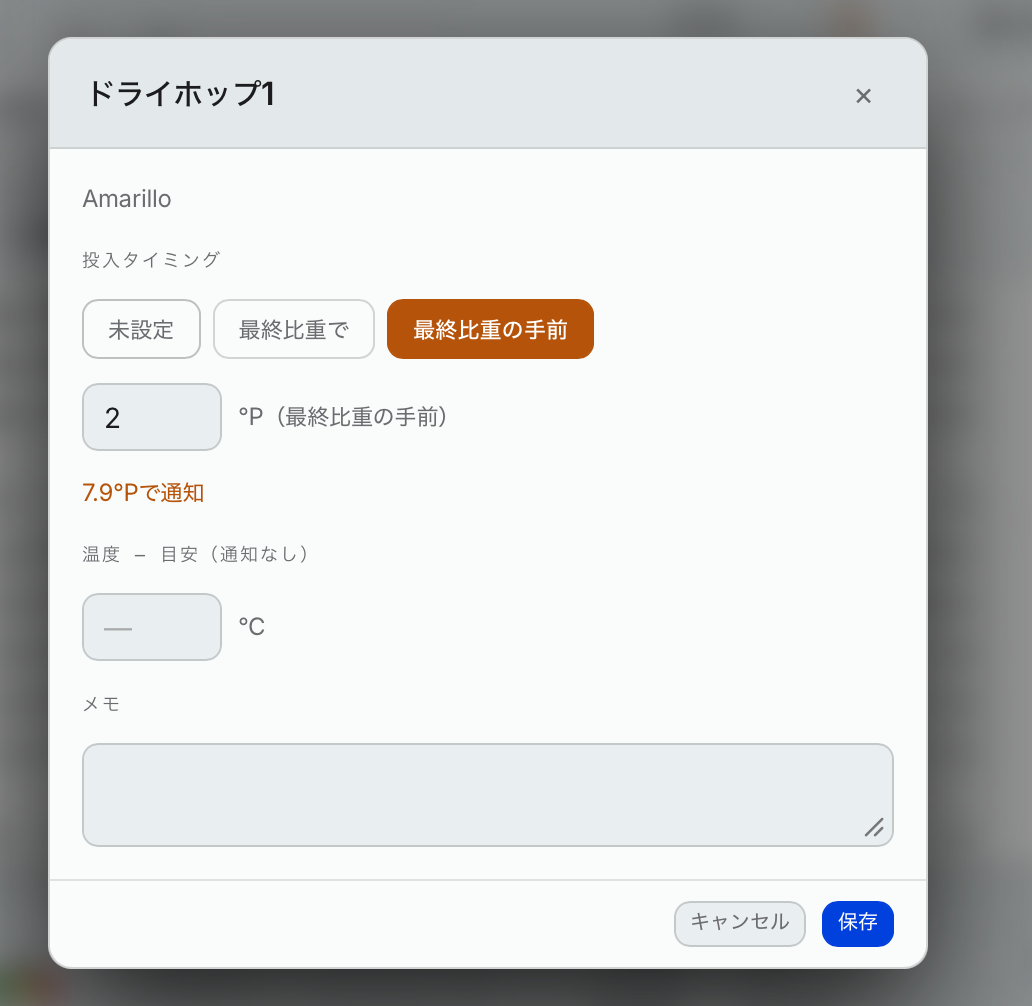
- Not set: it goes in whenever you decide.
- At final gravity: it goes in when the beer reaches its predicted final gravity.
- Before final gravity: choose how many °P before the final gravity it goes in.
Hakkotome alerts you "dry hop soon" 3°P before the dry hop is due, so you know a day or so ahead and can watch it. Example: the predicted final gravity is 2.3°P. Set to go in 2°P before final gravity, the dry hop is due at 4.3°P, and the alert comes at the first reading of 7.3°P or lower. Set to go in at final gravity, it's due at 2.3°P and the alert comes at 5.3°P.
You can also put a temperature. That's a guide only; it never sets off an alert. And add any notes.
4.13Share
Press Share, then Publish this version. It goes to the shared catalog, where any brewery using Hakkotome can get it. (Exporting a recipe as a BeerXML file is a different button, covered in export a recipe.)
4.14How the recipe is looking
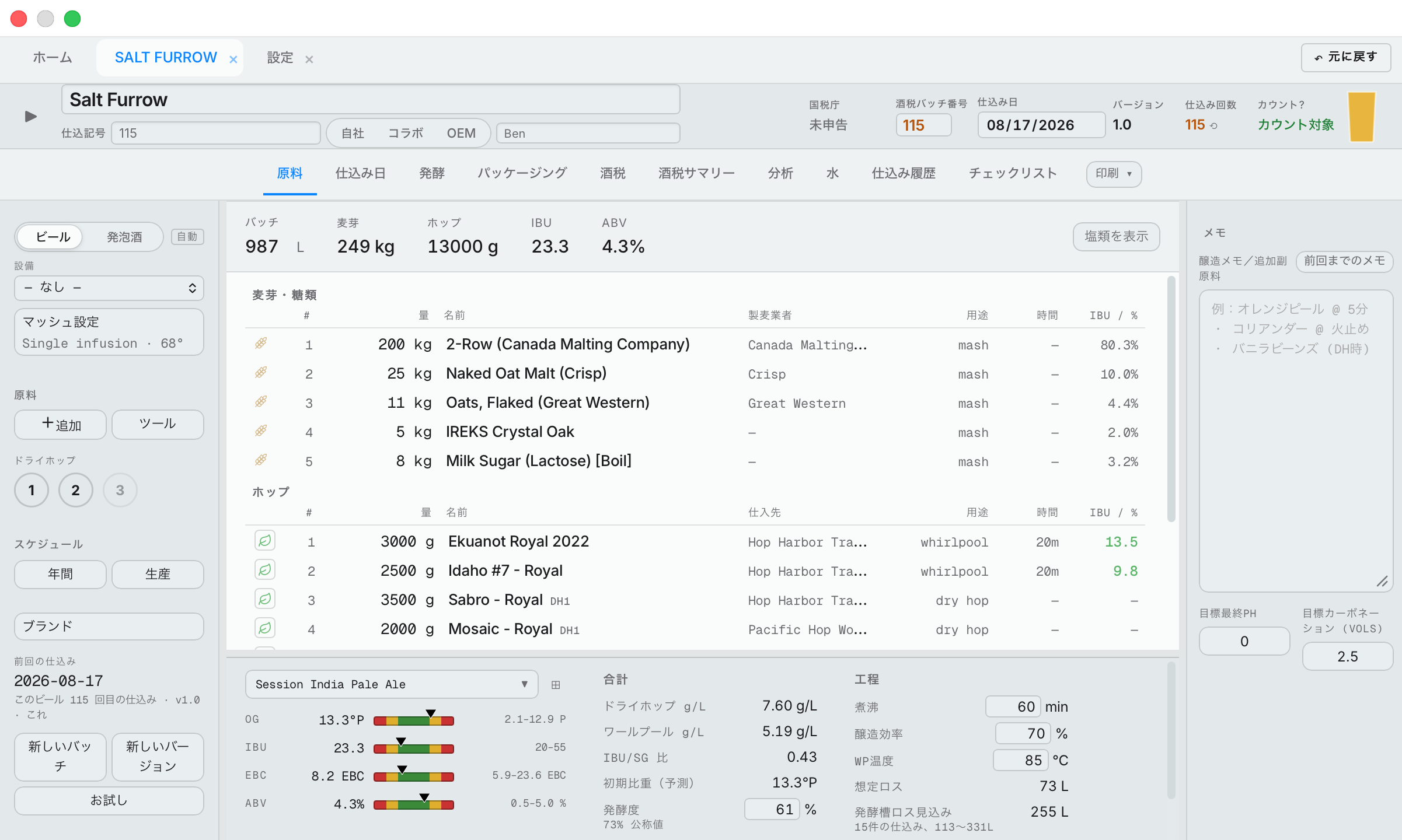
Across the top: the batch size, the total grain, the total hops, IBU and ABV. Show salts adds the water salts (acid, gypsum and the rest) to the ingredient list; Hide salts takes them off so the recipe looks cleaner. Salts are set on the water tab.
The panel at the bottom can be pulled up to see more. Drag it by the round handle in the middle of its top edge.
- Style: pick the style, and a bar for each number shows whether you're inside the style's range or outside it.
- Totals: dry hop g/L, whirlpool g/L, the IBU:SG ratio, the estimated original gravity, the attenuation this recipe is planned for (with the yeast's published attenuation under it: the average the yeast maker gives), the estimated pre-boil gravity and the estimated final gravity.
- Process: boil time, brewhouse efficiency, whirlpool temperature, the expected loss, the expected fermenter waste, and how much goes into the whirlpool.
Boil time: changing it doesn't change the gravity. Hakkotome still aims for the same beer at the end, so a 90- or 120-minute boil just starts with more water in the kettle.
Expected fermenter waste is worked out from your own past brews (the ones where you recorded packaging): what went into the fermenter minus what went into kegs and cans. Hakkotome splits that loss into the yeast (about the same every brew) and the dry hops (more hops, more loss), then uses this recipe's dry hops to estimate its loss. Example: if your brews lose about 100 L to yeast plus about 10 L for every kilogram of dry hop, a recipe with 15 kg of dry hops shows about 250 L. If all your brews used the same amount of dry hop, there's nothing to split by, so it shows their average. It's a guide only and never goes on your tax records. It needs at least three brews before it shows.
4.15Water
Open the Water tab.
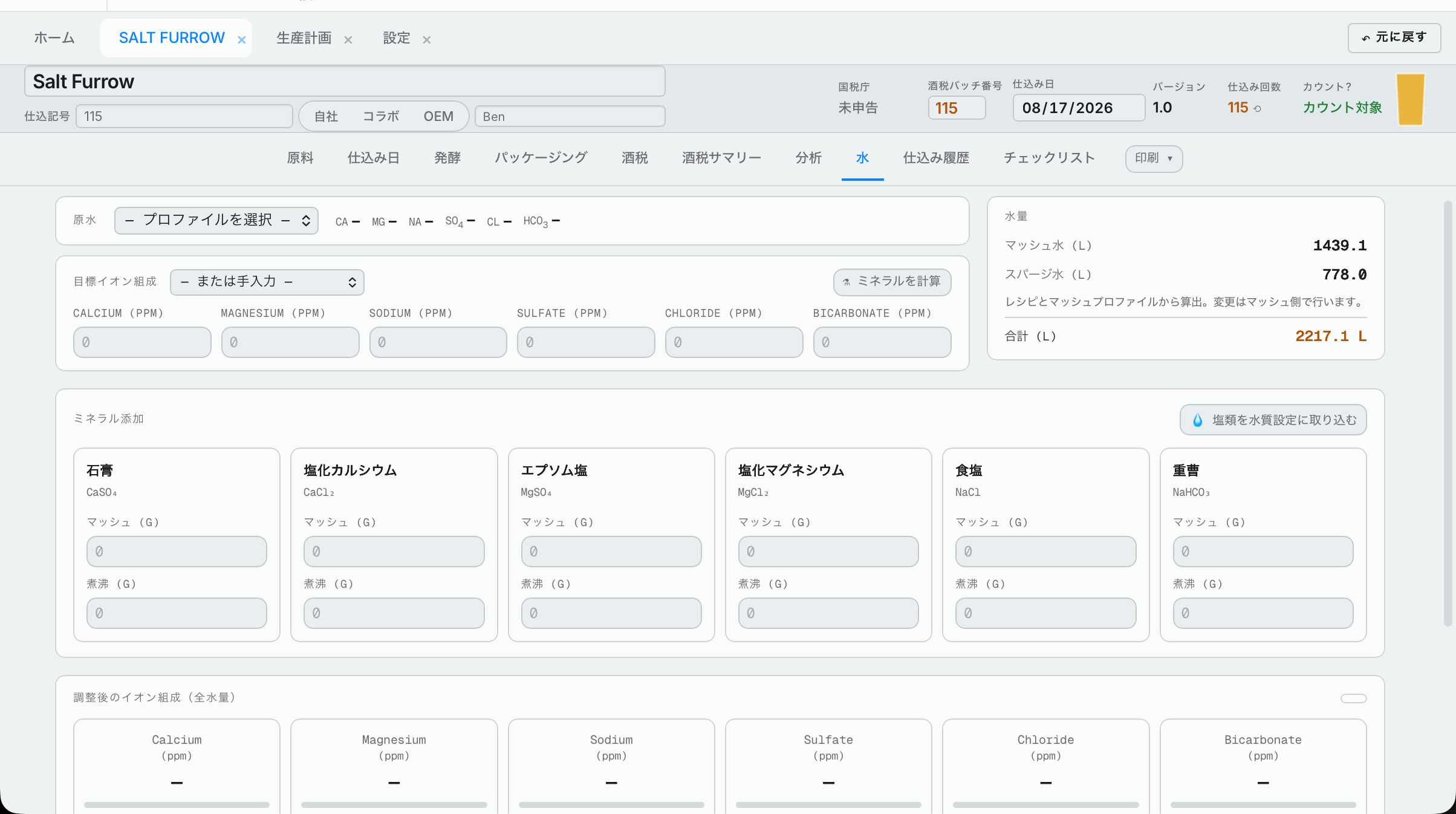
- Pick your source water (from your water profiles).
- Pick your target ion profile: the water you want for this beer. Hakkotome comes with five targets (Pale Ale / IPA, Hazy / NEIPA, Lager / Pilsner, Stout / Porter, Wheat / Witbier). They're yours to change, right here beside the picker: type the numbers you want in the boxes, then press Save as new to keep them as your own target, or pick a target and press Update to change it. Rename and Delete are there too. Every recipe can pick them, and a recipe that already picked one keeps its numbers when you change it. Example: your hazies run softer, so you set chloride to 180 and press Save as new as "House Hazy".
- Press Calculate minerals. It fills in how much gypsum, calcium chloride, Epsom salt, magnesium chloride (the flakes — dry にがり, nigari), table salt and baking soda to add, for the mash and for the sparge. You can still change any of them by hand.
Resulting ion profile shows the water you'll end up with. If you change a mineral by hand, you see the effect here straight away.
Pull salts into water chemistry: if salts like gypsum were added to the recipe as ingredients (for example in a recipe you imported), this moves them off the ingredient list and into the water section, so they count toward your water and mash pH. You can undo it. Salts shouldn't end up as ordinary ingredients anyway; this button is just a safety net in case they do.
Acid
At the bottom is the acid addition. On the right is your estimated mash pH. Type your target pH, and on the left it suggests how much acid to put in the mash and in the sparge.
Important: press Save to recipe. If you don't, the salts and acid are not added to the recipe.
4.16Notes and targets
On the far right of the recipe:
- Previous notes: if you've made other versions of this beer, press it to see the notes from those versions.
- The notes box: add your own notes, for example about the process.
- Target finish pH: type your target. After the dry hops, the Fermentation tab uses it to tell you how much acid brings the beer back to this pH (see dry hop pH). Leave it blank and there's no acid suggestion.
- Planned carbonation: the carbonation you're aiming for.
The recipe is now ready to brew. Next, put it on the schedule.
4.17Put it on the schedule
On the left panel, under Schedule, there are two buttons: Yearly and Production.
Yearly
Press Yearly. Choose Every year to repeat it, or One-off. Then pick the months. Example: a beer you brew in spring and fall. If it's only this year, keep it as a one-off; if it's every spring and fall, choose every year. Press Save and it goes on your yearly schedule.
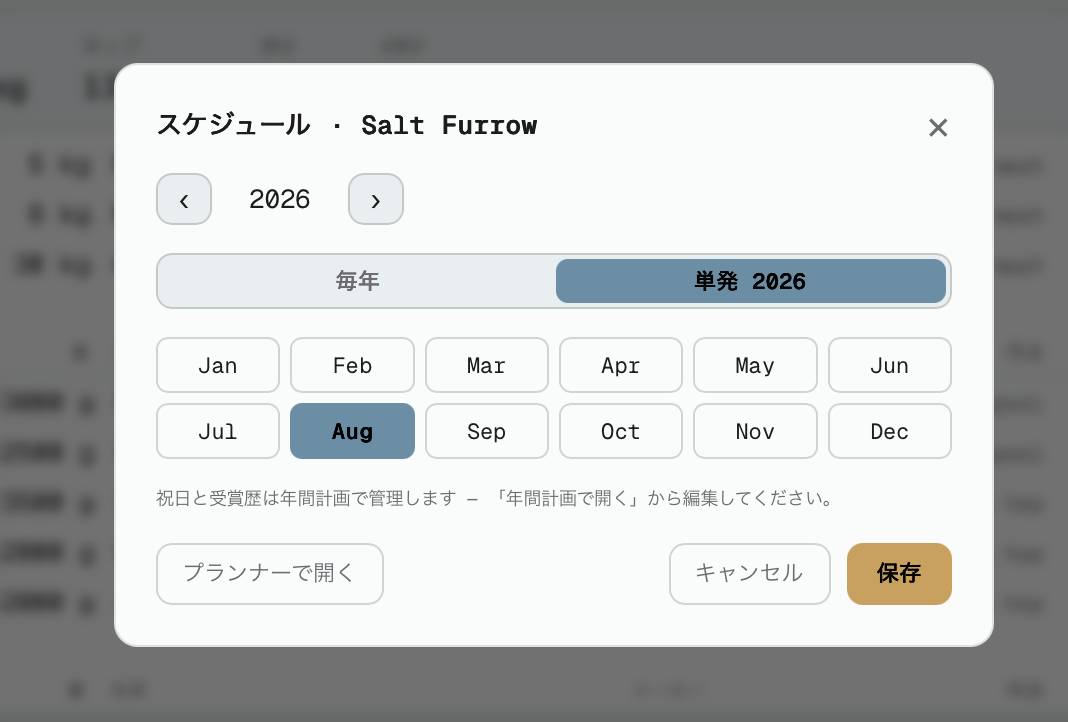
Press Open in planner to see it on the yearly schedule, where you can add more about it (tags, the flavor map and more). That's covered in the yearly schedule section. If you don't use the yearly schedule, skip this and just press Production.
Production
Press Production to put the brew on the production schedule. This one matters: your tax documents take their numbers from the production schedule.
The Edit brew window opens:
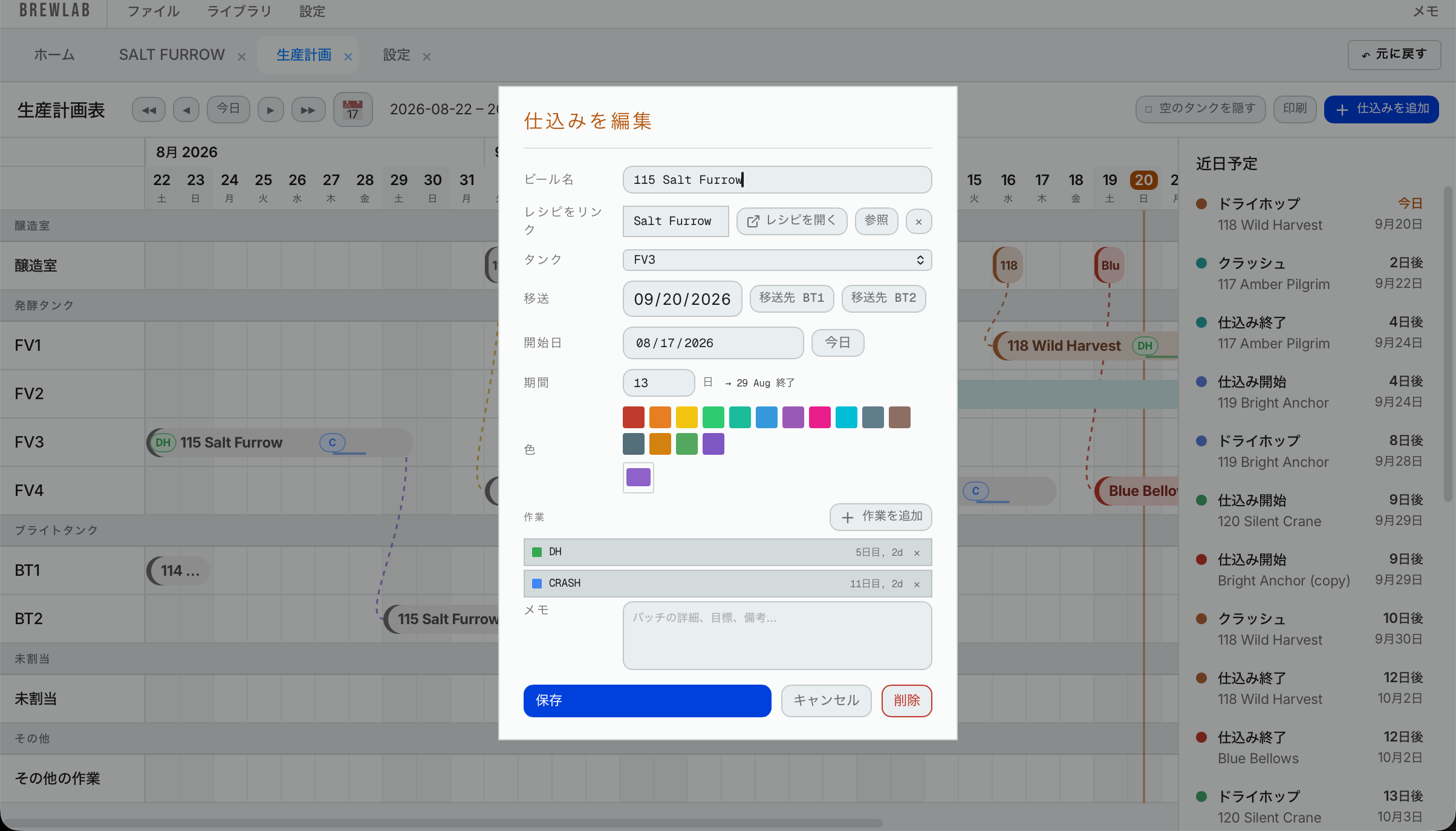
- Name: already filled in, with the batch number.
- Link recipe: shows the recipe it's linked to. (You can ignore Open recipe and Browse for now.)
- Vessel: pick the fermenter it goes in.
- Start date: the brew day.
- Duration: how many days it stays in the fermenter.
- Transfer: if it moves to another tank, pick the date and the tank (every fermenter and bright tank, since you might move a beer to another unitank), and press Transfer. A line appears under it: on this date, transfer to this tank, with how many days it stays in the new tank. To change the transfer, change that line. A beer has one transfer, because the tax records have room for one. Example: Gavin IPA goes into FV3 on September 21 for 14 days. Pick October 3 and BT1, and press Transfer. The line reads "October 3 → BT1", and the schedule shows FV3 until October 3, then BT1. The transfer shows as a line you can change, with the days in the new tank. A beer has one transfer: once it's made, you change or remove that line instead of adding another.
- Pick a color.
- Actions: press Add action for anything on a certain day: Dry hop, Cold crash, Transfer or Custom. Example: you want to dry hop on day 3. Choose Dry hop, set the start date, and a duration of 1 day (a dry hop takes a day). Assign it to a person and it shows up in their tasks. Press Add. Example: a cold crash that takes 3 days: choose Cold crash, set it, and assign the person who's in charge of it. Custom is for anything else, for example adding Biofine.
- Add any notes and press Save.
Vessel conflict: if that fermenter is already booked for another beer, Hakkotome tells you. You can move your brew to a different fermenter, move it to Unassigned (you don't know where it goes yet), or move the other beer to Unassigned. Use Unassigned only in an emergency: you have to tell the tax office which fermenter a beer is in, and that comes from here.
4.18Print the sheets
At the top of the recipe, press Print:
- Prep sheet: what to get ready: the grain bill to mill (with each malt's share of the grist), the water volumes, temperatures and salts for the mash and sparge, the hops, the yeast, and whatever you wrote in Brewing notes / extra additions. Misc ingredients from the ingredient list aren't on it, so write anything else to set out in that notes box.
- Brew day sheet: where you record brew day. It lists the boil and whirlpool additions, not the grains. Anything else that goes in the boil, like sugar, is on it too: any fermentable ticked Added to the kettle, not the mash in your library.
- Fermentation and packaging sheet: the log for fermentation, and how much you packaged.
- Full packet: all three sheets in one printout, each on its own page.
After the beer is finished and everything is entered, you can also print the Brew day record and the Fermentation and packaging record to keep a copy.
4.19Save the beer
- Save this beer to Drive makes a folder for the beer in your Google Drive. We recommend it for every beer. Everything goes under one main folder named Hakkotome, then Made Beer, then a folder for each beer named by year, tax batch number and beer name (for example 2026-118 — Wild Harvest). The recipe and the brew sheets go in it. If you use the Sales Hub, it uses the same folder and adds the beer's other files (photos and so on). Google is connected once for the whole brewery, in the Sales Hub: Settings → Google → Connect Google. Hakkotome saves through that connection, so there's nothing to set up in Hakkotome and nothing to type. (Hakkotome's Settings → Advanced has a button that takes you there.) Saving the same beer again replaces its files instead of making copies.
- Download this beer saves it as a zip file.
We recommend Drive. Everyone at the brewery can get to it, and Hakkotome and the Sales Hub can both find the files, for example the beer's photos. A folder on your own computer only you can reach. Even if you put it in a shared folder, Hakkotome doesn't know it's shared.
4.20Branding
At the bottom of the left panel, press Brand to sort the beer three ways. All three are optional, and a beer can have any, all or none.
- Brand line: if your brewery has different lines of beer. Example: a "Classics" line and a "Moderns" line. Put each beer in its line. It's the same list as the brand lines on the yearly schedule, kept in Settings → Lines → Brand lines.
- Series: a set of beers you brew with one thing changed. Example: a hop series where every beer is 30% Citra, 30% Mosaic and the rest a new hop: call it the "30 Series", and you can see whether you're brewing one every month.
- Tags: any other label you want. Tags show on the beer in the yearly schedule and in your recipe list, where you can search and filter by them.
These help organize your yearly schedule. You can change the names of your lines and series whenever you like.
At the bottom of the left panel are three more buttons: New batch, New version and Play. You use them after a beer is finished; they're covered in brewing it again.